
Welcome: profile and optional details
3 minUnderstand the first welcome screens and continue without sharing contacts or optional personal details.
Watch the steps
Connecting playback controls…
Read the on-screen captions
- Read the welcome and continue.
- Share how you found MyPraise App if you wish.
- Read the personalization introduction.
- Check your profile name: Ike N in this example.
- Skip contacts for now.
- About Me details are optional. Continue when ready.
- Choose an age range or Prefer not to say.
Step by step
Read the welcome
Continue through the introduction. If asked how you found MyPraise App, share an answer only if you wish.
Review personalization and your profile
Read how personalization works, then check the profile shown. The example already has Ike N. To set a name and portrait afterward, use the profile lesson.
Choose whether to add contacts
On Set up your people, choose Skip for now to continue without importing system Contacts. You can add app-only people later.
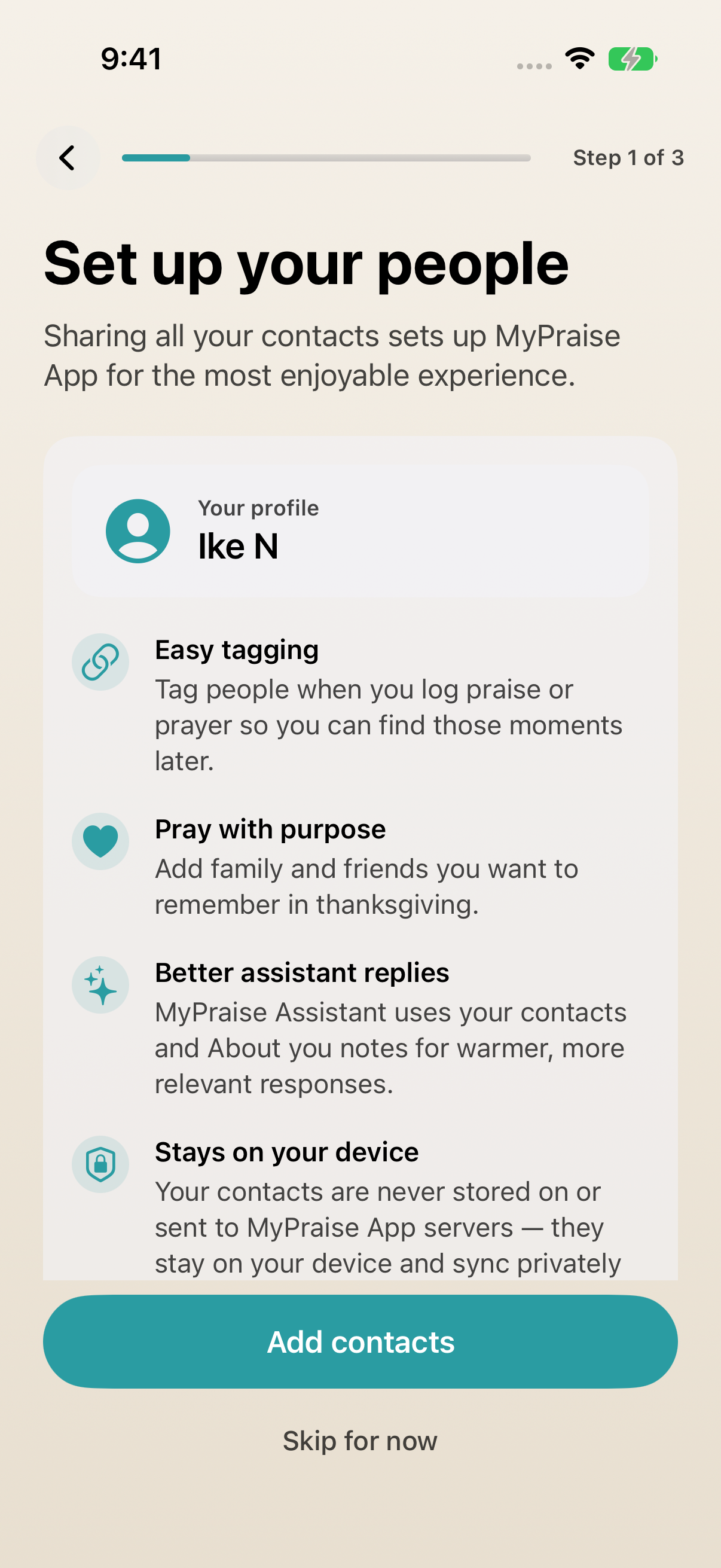
Choose Skip for now to continue without importing system Contacts. Keep optional details optional
Continue past About Me without filling it in if you prefer. Choose an age range or Prefer not to say, then continue to the next welcome chapter.
Keep exploring
If something looks different
Checked against MyPraise App 1.1.0 · 2026-09-20
Before you begin
- For MyPraise App 1.1.0. Apple has approved this version; availability depends on the owner’s manual App Store release.
- Begin in the welcome flow. This recording replays onboarding with an existing sample profile, Ike N. It does not demonstrate a fresh installation. The plain warm background is a capture preset; your background may differ.
- Video and screenshots retain their original capture dates and build provenance; most existing walkthroughs were recorded with 1.1.0 (34). They are not new build 53 recordings.
The screen looks different.
Guide screens may come from different versions of MyPraise App. Always download the latest MyPraise App from the App Store.
If a control is still missing, open Settings → Support for help.
Do I have to add my phone contacts?
No. This walkthrough chooses Skip for now. The people lesson shows an app-only contact path without importing your address book.