
Set your profile name and photo
3 minChoose a profile portrait and use an app-only person record as your profile name.
Watch the steps
Connecting playback controls…
Read the on-screen captions
- Open Profile from Home.
- Tap the photo edit control.
- Choose your portrait from Photos.
- Check your profile photo.
- Tap Set Up Profile to add your name.
- Open the people picker to add yourself.
- Search for your name and choose Create.
- Keep the contact only in MyPraise App.
- Create the person.
- Finish with Done.
- Check your name in Profile Contact.
Step by step
Choose your profile photo
Open Profile from Home and tap the photo edit control. Choose your portrait from Photos and check the result.
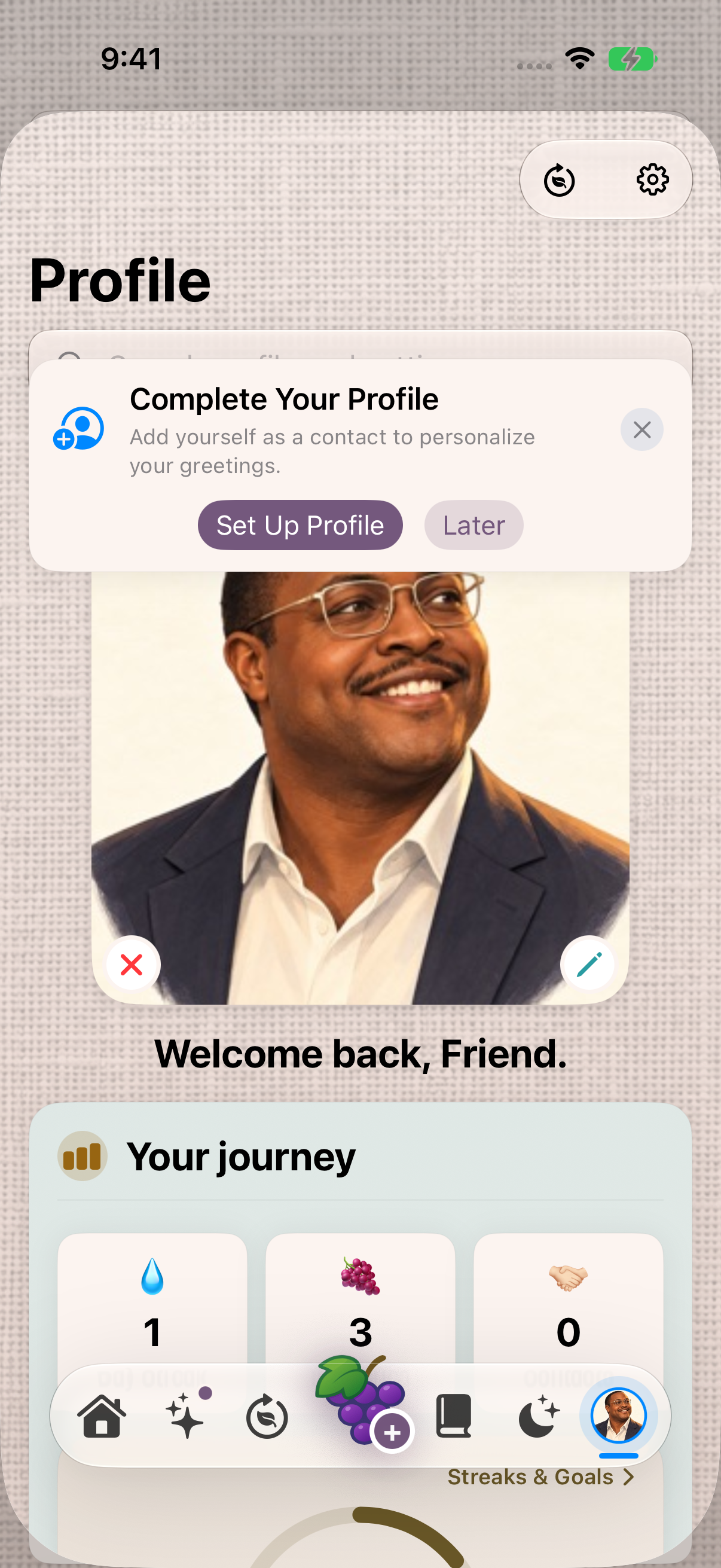
The portrait is set first. Set Up Profile adds the profile contact used for your greeting. Set up your profile name
Tap Set Up Profile to open the people picker. Search for your name. Select your existing person record, or choose Create when you need a new one.
Create an app-only person
In this example, enter Ike N and choose Keep Only in MyPraise App, then create the person. No system Contacts permission or phone number is needed for this path.
Confirm your profile contact
Finish with Done and check Profile Contact and the greeting name in Profile. Your profile portrait is separate from the person record’s own photo.
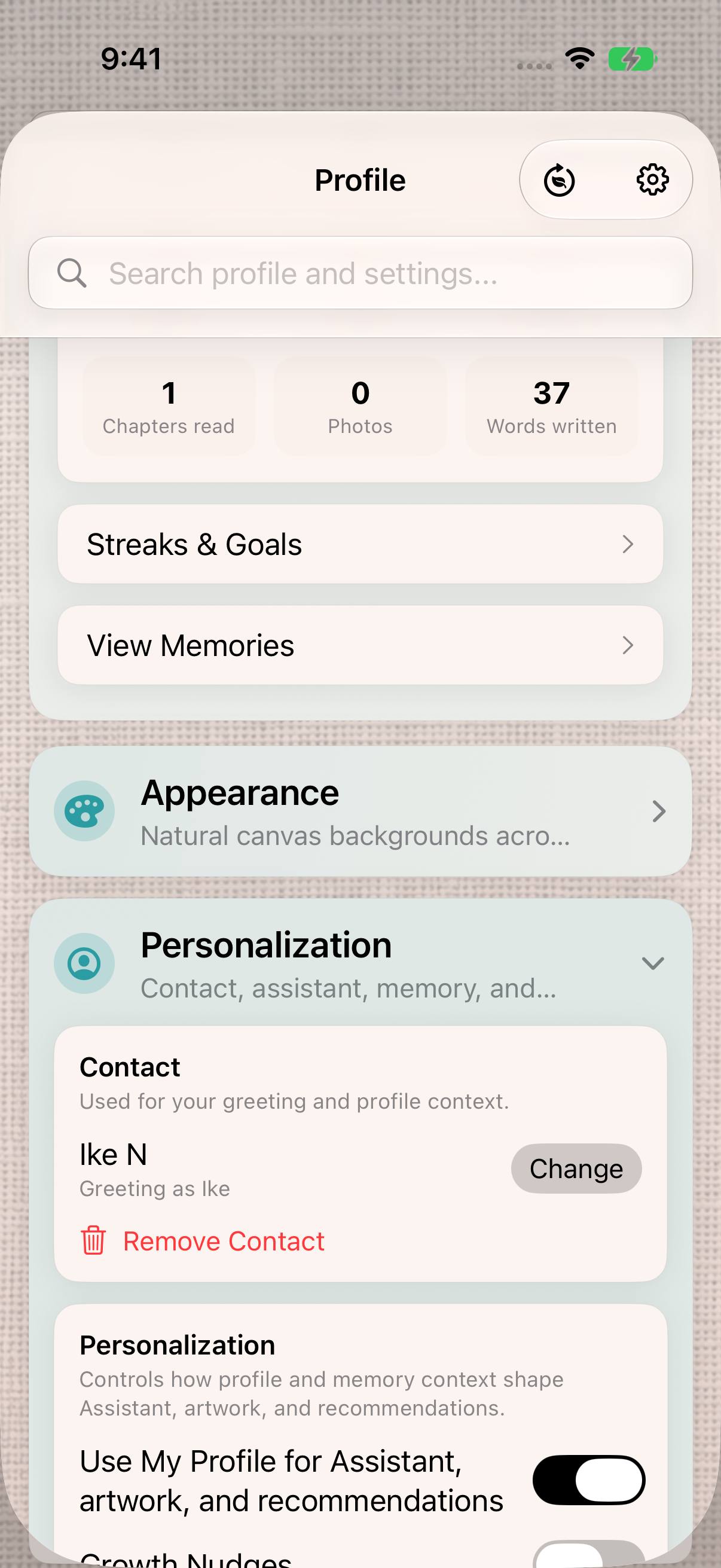
Ike N is selected as the profile contact. The profile portrait is set separately.
Keep exploring
If something looks different
Checked against MyPraise App 1.1.0 · 2026-09-20
Before you begin
- For MyPraise App 1.1.0. Apple has approved this version; availability depends on the owner’s manual App Store release.
- Have a portrait available in Photos. This sample uses Ike N. Profile photos and person-record photos are separate settings; this lesson changes the profile portrait.
- Video and screenshots retain their original capture dates and build provenance; most existing walkthroughs were recorded with 1.1.0 (34). They are not new build 53 recordings.
The screen looks different.
Guide screens may come from different versions of MyPraise App. Always download the latest MyPraise App from the App Store.
If a control is still missing, open Settings → Support for help.
Why does the person still have a different photo?
The profile portrait and the person record have separate photos. This lesson changes the profile portrait. Use the people lesson to add a person’s own photo.