
Reflect with MyPraise App Assistant
3 minUse MyPraise App Assistant to reflect on relevant memories, find words for a prayer, and review a draft before keeping it. Learn where Apple Intelligence fits and how to choose the help you need.
Watch the steps
Connecting playback controls…
Read the on-screen captions
- Open MyPraise App Assistant and expand the view
- Choose a suggested prompt, or write your own
- Review your words and tap Send
- Read the response and check its details
- Reopen a saved conversation from History
- Choose Draft as Prayer from the response
- Review the title, words and prayer tone
- Continue, review details, then keep the memory
- Open the saved memory to check it
Step by step
Open Assistant and choose your words
Tap MyPraise App Assistant in the main navigation. Use Expand for a larger view. Choose a suggested prompt, or write your own in Ask MyPraise App. Suggested prompts rotate; this example asks for a morning prayer for focus, gratitude and peace. Ask one clear question and name the result you want. For a specific experience, use Add to chat → Link Memory. Retrieved memory context is selective and can miss details.
Send and review the response
Review the prompt, then tap the upward Send arrow. Wait for the response to finish. Read its words, Scripture reference and any details drawn from your memories; correct anything that does not fit your experience. This capture shows an On-device response label.
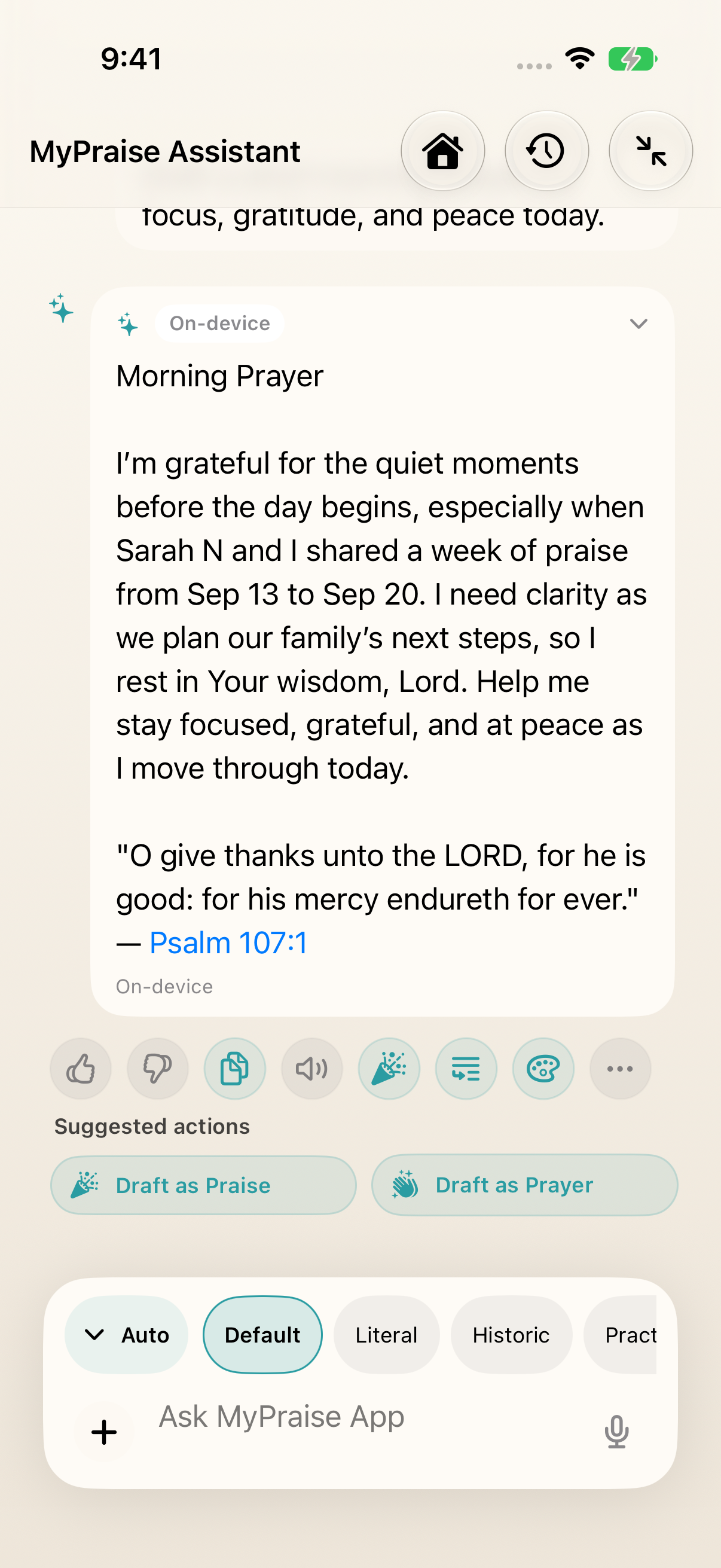
Read and review the response before choosing Draft as Prayer. This example uses only sample memories. earlier 1.1.0 recording. Turn the response into a prayer draft
Choose Draft as Prayer below the response. To return to an earlier conversation, open History and select it from Recent Chats first. Review the transferred title and words in the memory editor, and keep a prayer tone such as Reverent.
Review details and keep the memory
Tap Continue to reach the enrichment step. Review people and other details, then tap Continue to keep the memory. On the Success screen choose View memory and check the saved result. The example saves Morning Prayer as Prayer · Reverent.
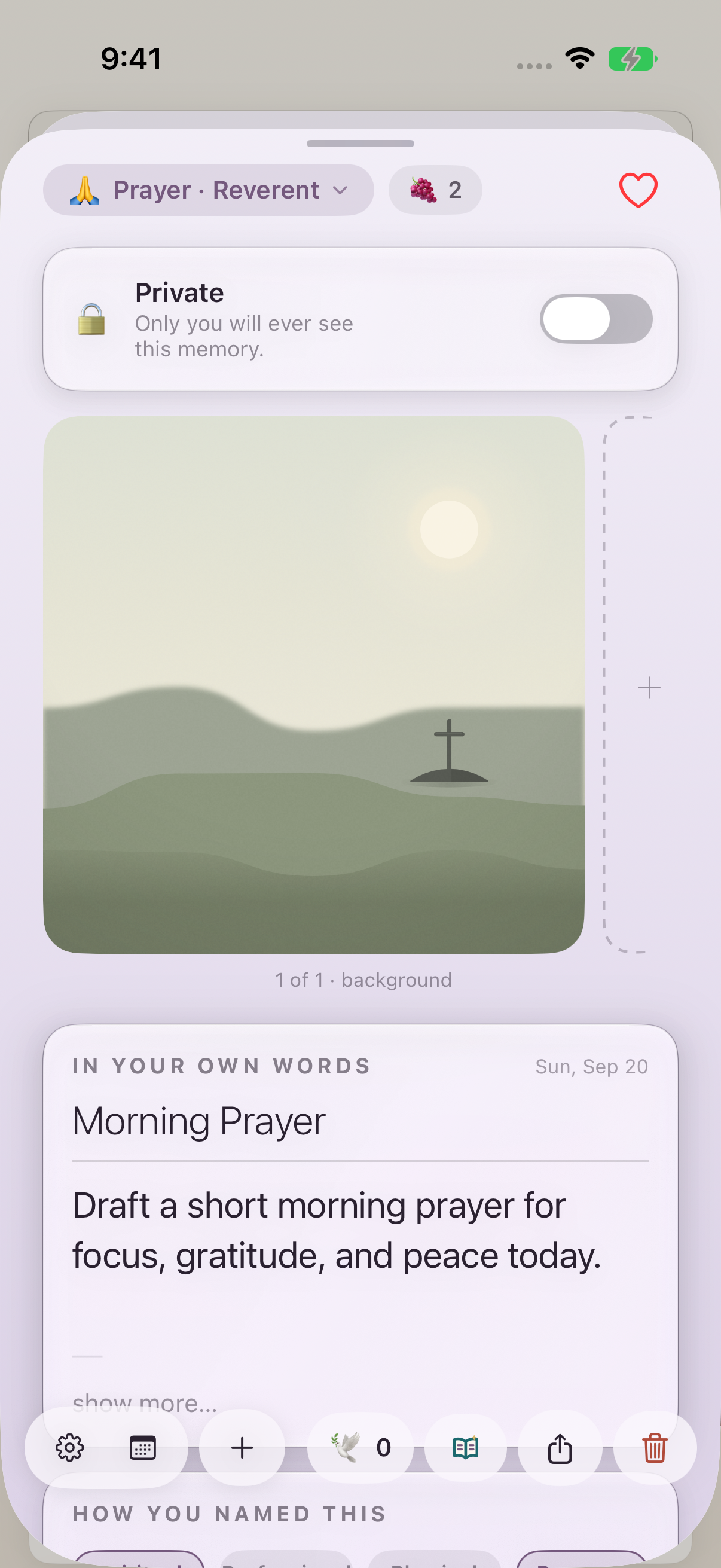
After keeping the draft, open the saved memory to confirm its title and prayer tone. earlier 1.1.0 recording. Review the words and the memories behind them
Check any Memories used and Scripture references before saving. MyPraise App guides responses toward the Word and verifies recognized verse quotations where supported; this does not guarantee that every interpretation or quotation is correct. Open the Bible, read the surrounding passage, and edit anything that does not faithfully reflect your experience.
Keep exploring
If something looks different
Checked against MyPraise App 1.1.0 · 2026-09-21
Before you begin
- For MyPraise App 1.1.0. Apple has approved this version; availability depends on the owner’s manual App Store release.
- Earlier MyPraise App 1.1.0 (34) recording. Screens may differ from the released app.
- Open MyPraise App Assistant from the main navigation. The example uses Auto mode, Default tone and an isolated sample library; device availability and other response modes may differ.
- Apple Intelligence text requires compatible hardware, supported software/language/region, and an available model. MyPraise App uses the Foundation Models text framework on iOS 26 or later; Apple Private Cloud text in this preview requires iOS 27 and availability.
- Optional OpenAI features require Believer, Cloud AI Features enabled, and your own OpenAI API key. Provider API charges are separate.
- Video and screenshots retain their original capture dates and build provenance; most existing walkthroughs were recorded with 1.1.0 (34). They are not new build 53 recordings.
The screen looks different.
Guide screens may come from different versions of MyPraise App. Always download the latest MyPraise App from the App Store.
If a control is still missing, open Settings → Support for help.
Why is my suggested prompt or response different?
Suggested prompts rotate and responses can reflect your saved context. You can write your own request instead. Review the response before saving it. This preview verifies the captured Auto/Default workflow with an On-device label; availability, cloud modes and audio are not demonstrated here.
Why is Apple Intelligence unavailable?
Check the availability message and Apple Intelligence in iPhone Settings. Unsupported hardware, language/region, a model still downloading, or OS requirements can prevent use. Apple Private Cloud also has availability and daily limits; the app falls back to an available on-device model when that route cannot run. A subscription cannot make unsupported hardware eligible.
Does the Assistant know every memory?
No. It retrieves a limited selection of relevant context and can overlook something. Link the memory you mean, narrow the date or topic, and correct mistaken connections. Adding context to a request is not the same as training a model on your library.
Can I make the answer shorter or more practical?
Use the response-tone choices in the composer; Practical favors usable next steps and Literal stays close to your wording. In Profile → Settings, scroll to MyPraise App Assistant Defaults; Response Style changes the usual depth. You can also ask explicitly for two sentences, a short prayer, or a list. See Shape your Assistant replies for the controls.
What does the current video prove?
The existing clip demonstrates the preview app’s prompt, response, History, prayer draft, and save workflow in the isolated simulator. It does not establish Apple Intelligence availability on physical devices, cloud billing, or image-generation outcomes.