
Shape your Assistant replies
8 minUnderstand how response tone, Response Style, and Spiritual Tone guide the same prompt, then choose the combination that suits your next question.
Watch the steps
Connecting playback controls…
Read the on-screen captions
- Use the tone row in MyPraise App Assistant.
- Literal stays close to your wording.
- Practical emphasizes useful next steps.
- For defaults, open Profile, then Settings.
- Scroll to MyPraise App Assistant Defaults.
- Response Style changes the usual depth.
- Choose Concise for shorter replies.
- In Settings, open Memory Context.
- Light, Standard and Deep adjust retrieved context.
- Choose Light for a narrower starting context.
- In Assistant: Add to chat, then Link Memory.
- Choose the particular experience you mean.
- Check the linked memory, then write your question.
Step by step
Start with a clear request
Start with the same prompt for every comparison: “Help me reflect on gratitude after a difficult week and choose one small action for tomorrow.” Add the particular memory if you want the answer grounded in it. Your prompt supplies the task and subject; tone and style add guidance about how to answer. Selecting a setting does not rewrite the words in your message field or edit an earlier reply. Send a new request or ask for a revision to compare the result.
Choose a response tone
Use the tone row above the message field. Default follows the request naturally. Literal stays close to your exact words and avoids adding symbolism. Historic adds relevant historical, biblical or cultural context. Practical prioritizes decisions and actions. Pastoral emphasizes care and spiritually sensitive encouragement. Mix combines these approaches when useful. Scroll the row for more choices. The detailed comparisons below use the same difficult-week prompt.
Set the usual length and spiritual emphasis
Open Profile → Settings and scroll to MyPraise App Assistant Defaults. Response Style controls depth: Concise removes extra material; Balanced lets your question set the length; Reflective explores supported themes, feelings and meaning; Detailed covers each requested point with practical structure. Spiritual Tone is a separate preference: Gentle, Scripture-forward, Practical, Encouraging or Minimal. These guide future requests. Explicit instructions such as “one sentence” or “do not add a prayer” help express what you want for this answer.
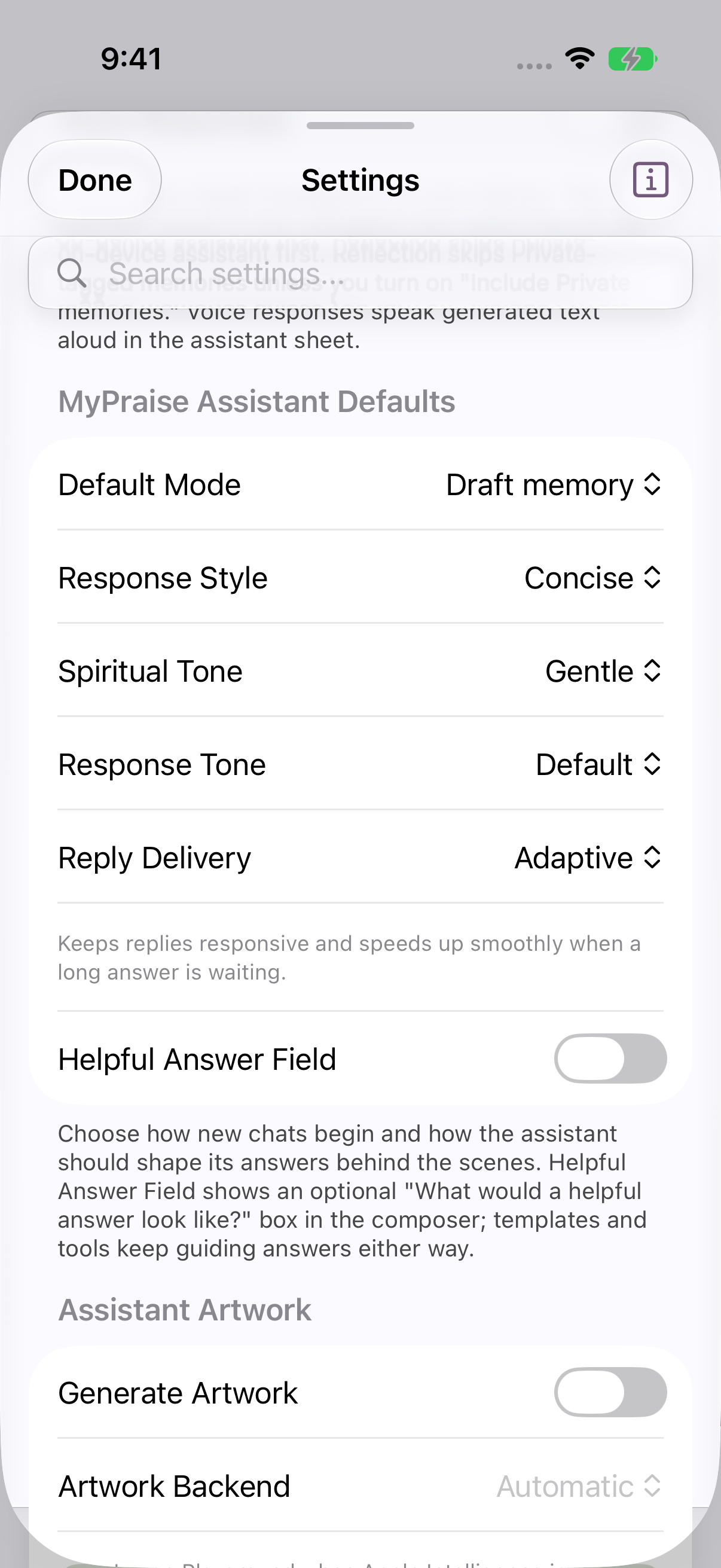
Response Style set to Concise in MyPraise App Assistant Defaults. earlier 1.1.0 recording. Provide the context that matters
Use Add to chat → Link Memory and choose the particular experience you mean. In Profile → Settings, scroll to Apple Intelligence Features → Memory Context: Light, Standard and Deep control how much retrieved context is considered. Choose Light for a narrower starting point; a larger setting still does not include every memory. State the topic and date clearly, and correct unwanted connections. Helpful Answer Field can describe what a useful answer would look like.
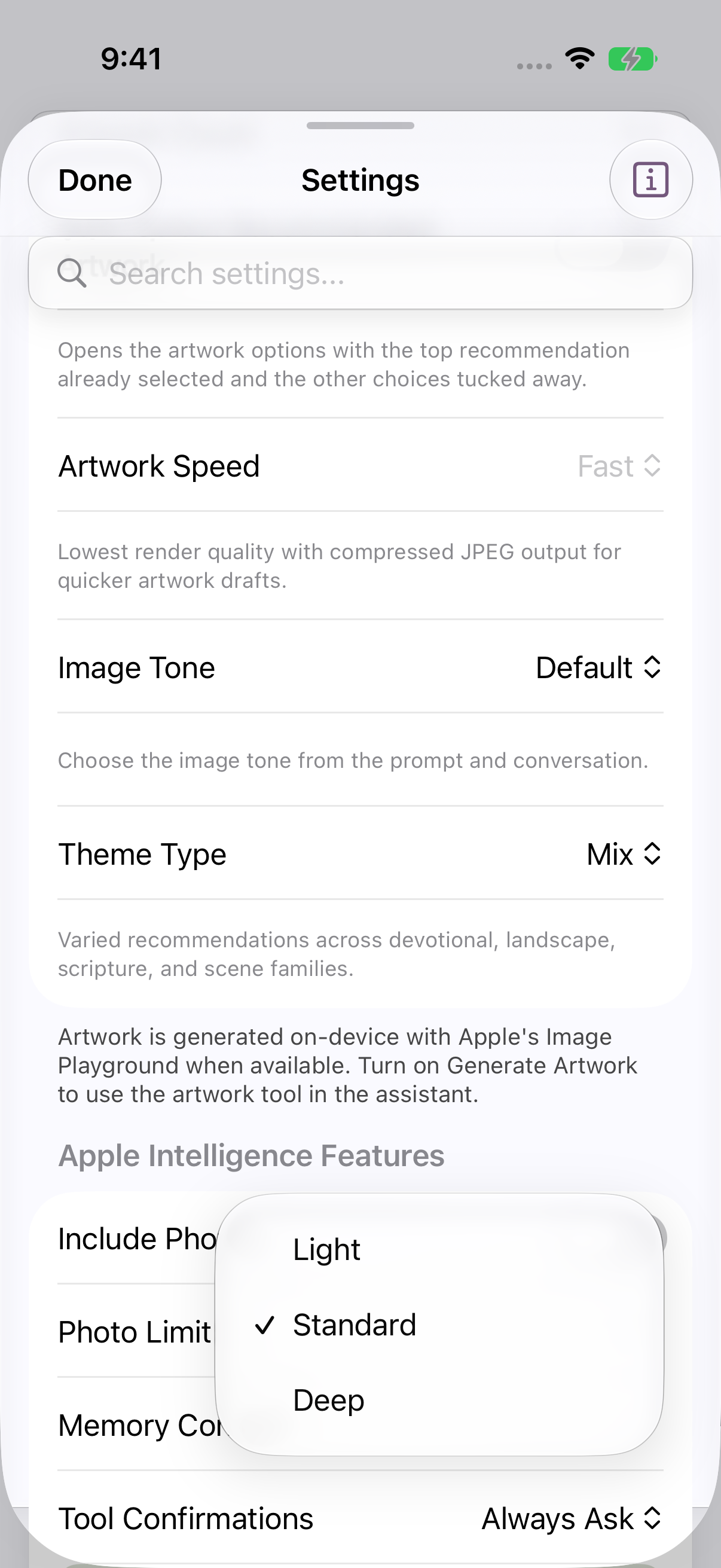
Memory Context choices Light, Standard and Deep. earlier 1.1.0 recording. 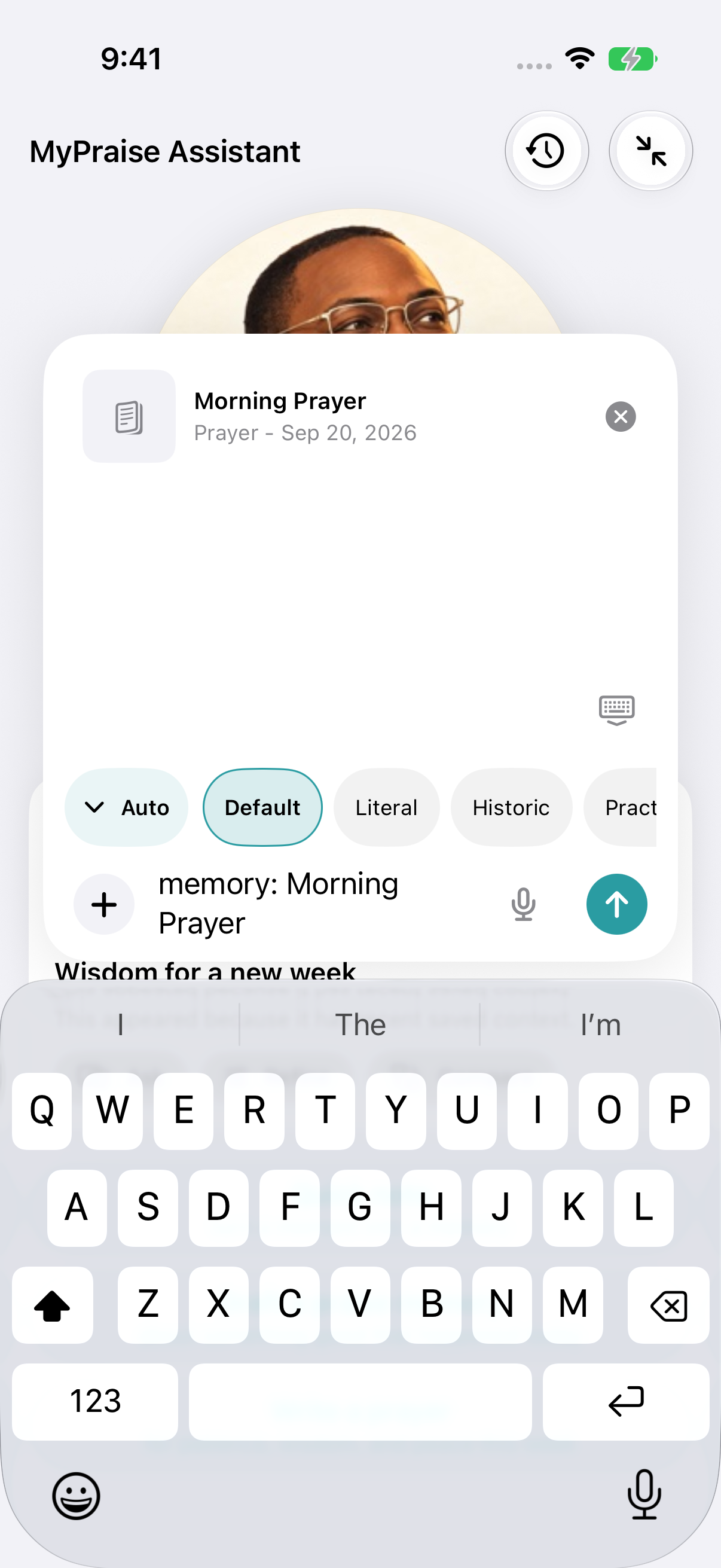
Fictional Morning Prayer attached as explicit Assistant context. earlier 1.1.0 recording. Choose processing for the task, when available
Apple Private Cloud settings control whether available text requests use Apple’s cloud by default or for harder questions. The optional OpenAI Cloud Model control is under Advanced Cloud AI only when that experimental feature is enabled; it is not a standard control available to every user. OpenAI execution requires eligible BYOK access. Choosing a different model changes capability, availability, privacy, and potentially cost; it does not guarantee accuracy. Artwork has its own Image Model choice.
Review, refine, and keep the useful result
Ask for a shorter revision or a different tone if the first answer misses your needs. Verify Scripture and personal details. Keep the final wording through the existing draft/save workflow; generating a response does not make it a faithful record automatically.
Keep exploring
If something looks different
Checked against MyPraise App 1.1.0 · 2026-09-21
Before you begin
- For MyPraise App 1.1.0. Apple has approved this version; availability depends on the owner’s manual App Store release.
- Earlier MyPraise App 1.1.0 (34) recording. These instructions describe the preview build, not App Store release 1.0.3.
- This clip demonstrates tone, style, and context controls. A newly generated answer using the changed defaults and gated OpenAI model selection are not demonstrated; those remain coverage gaps.
- The comparisons below explain the app’s configured guidance. They are illustrative expectations, not recorded Assistant replies or promises of identical output. Keep the prompt, linked memory, model and other settings unchanged when comparing one control.
- Video and screenshots retain their original capture dates and build provenance; most existing walkthroughs were recorded with 1.1.0 (34). They are not new build 53 recordings.
- Processing-route descriptions are settings guidance, not a successful cloud execution demonstration. This release excludes later Brave and Private Cloud routing developments.
The screen looks different.
Guide screens may come from different versions of MyPraise App. Always download the latest MyPraise App from the App Store.
If a control is still missing, open Settings → Support for help.
Tone or style: which should I change?
Change tone when the voice feels wrong; change Response Style when the depth or length feels wrong. Change the prompt or linked context when the answer is about the wrong thing. Consider another available model only after making the request clear.
Does a pastoral tone make advice spiritually authoritative?
No. Tone changes presentation. Read Scripture in context, use discernment, and involve trusted people where appropriate.
Why do model choices differ between text and artwork?
Text and images use different processing routes. Available options depend on device support, OS version, service availability, subscription access, and configured credentials.
Settings search returns to the top. How do I find these controls?
In this preview, selecting Assistant Defaults in Settings search can clear the search without opening the controls. Dismiss the keyboard and scroll to MyPraise App Assistant Defaults instead.
How do these controls affect my prompt?
Think of three layers: the prompt says what you want; response tone guides the approach; Response Style guides depth. Spiritual Tone adds a preference for faith language. For the shared difficult-week prompt, Practical + Concise asks for usable help in few words; Pastoral + Reflective invites caring reflection. Neither should invent what happened during your week. Context and the selected model also affect the result, so change one setting at a time.
Default: when should I let the prompt lead?
Default adds no extra response-tone instruction. For the shared prompt, the Assistant can combine a brief reflection with one action because you asked for both. Use it for everyday questions or when your request already specifies the voice clearly. Default is not a fixed output template.
Literal: how does it stay close to my words?
Literal asks for a plain explanation of what you actually said and discourages unnecessary symbolism. With the shared prompt, expect attention to gratitude, a difficult week and tomorrow’s action, without treating unspecified events as a spiritual sign. Use it for clarifying a memory or when an answer reads too much into your wording. Literal does not mean a word-for-word repetition.
Historic: what kind of context does it add?
Historic asks for concise historical, biblical or cultural background when relevant. The shared prompt might invite context about thanksgiving as a practice, alongside the requested action. Use Historic when you ask about a passage’s setting, an expression or a tradition. It does not turn an answer into live research or prove that its historical claims are correct; check the passage and sources.
Practical: how does it change the answer?
Practical prioritizes concrete decisions, habits and next steps. For the shared prompt, the emphasis might be on naming one moment of gratitude and setting a time to revisit it tomorrow. Use it when you understand the theme but need help acting on it. Add constraints such as “one action that takes two minutes” to make the advice fit your day.
Pastoral: how does it handle a difficult experience?
Pastoral asks for a gentle, caring and spiritually sensitive response without preachiness or undue certainty. For the shared prompt, it may acknowledge that gratitude and difficulty can coexist before suggesting an action. Use it when the wording feels emotionally blunt. It should not assign a divine reason to your hardship, erase hard feelings or replace trusted pastoral care.
Mix: when is a blend useful?
Mix combines plain meaning, useful context, practical help and caring encouragement as the request warrants. With the shared prompt, you might get a short reflection followed by an action. Use it when you want more than one perspective. It does not require every answer to contain four sections; choose Concise if the blend feels too long.
Concise, Balanced, Reflective or Detailed: which depth fits?
With the same prompt: Concise aims for a compact reflection and action, with little extra explanation. Balanced includes enough context to make both useful and lets the request determine length. Reflective explores supported feelings or themes behind gratitude and difficulty; it is not simply a longer answer. Detailed develops each requested point with practical reasoning and structure, without padding. Choose Concise for a quick check-in, Balanced for everyday use, Reflective for journaling, and Detailed for a multi-part question. None guarantees a word count.
What does each Spiritual Tone preference change?
Gentle keeps faith language warm and unforced. Scripture-forward invites a relevant passage or biblical theme when appropriate, subject to Scripture accuracy checks. Practical emphasizes faith expressed through habits and concrete next steps. Encouraging emphasizes hope, warmth and gratitude while remaining honest about difficulty. Minimal reduces explicit spiritual language unless you ask for prayer, Scripture or devotional framing. Minimal does not prevent a direct Scripture request from being answered.
Why is Practical listed in two places?
Practical in the response-tone row guides the overall approach toward usable actions. Practical under Spiritual Tone guides how faith is expressed through grounded habits and encouragement. Response Style still controls depth. For example, Practical response tone + Gentle Spiritual Tone + Concise style can request a short, actionable answer with a warm, light faith emphasis.
Which combinations should I try first?
Quick next step: Practical + Concise, with “Give me one two-minute action.” Reflective journaling: Pastoral + Reflective + Gentle, with “Help me name what I feel without assuming why this happened.” Passage background: Historic + Detailed + Scripture-forward, with “Explain the setting and distinguish the verse from your interpretation.” Plain wording: Literal + Concise + Minimal, with “Summarize what I wrote in two sentences.” These are prompt recipes, not measured sample outputs.
What should I change when a response misses the mark?
Too long: choose Concise and state a length. Too abstract: choose Practical and ask for one observable action. Too much inferred meaning: choose Literal and link the exact memory. Emotionally blunt: try Pastoral or Gentle. Too much faith language for the task: choose Minimal and say what to omit. Missing useful context: clarify the question or link a memory before increasing context depth. Different settings guide generation; they cannot guarantee accuracy or compliance.