
Read, search, and highlight Scripture
3 minOpen a chapter, find a Scripture reference, and mark a verse with a highlight.
Watch the steps
Connecting playback controls…
Read the on-screen captions
- Press and hold a verse to open its actions
- Choose Highlight
- Choose a highlight color
- Check the highlighted verse
Step by step
Open the Bible
Tap Bible and use Resume reading to open your current chapter. The example continues in John.
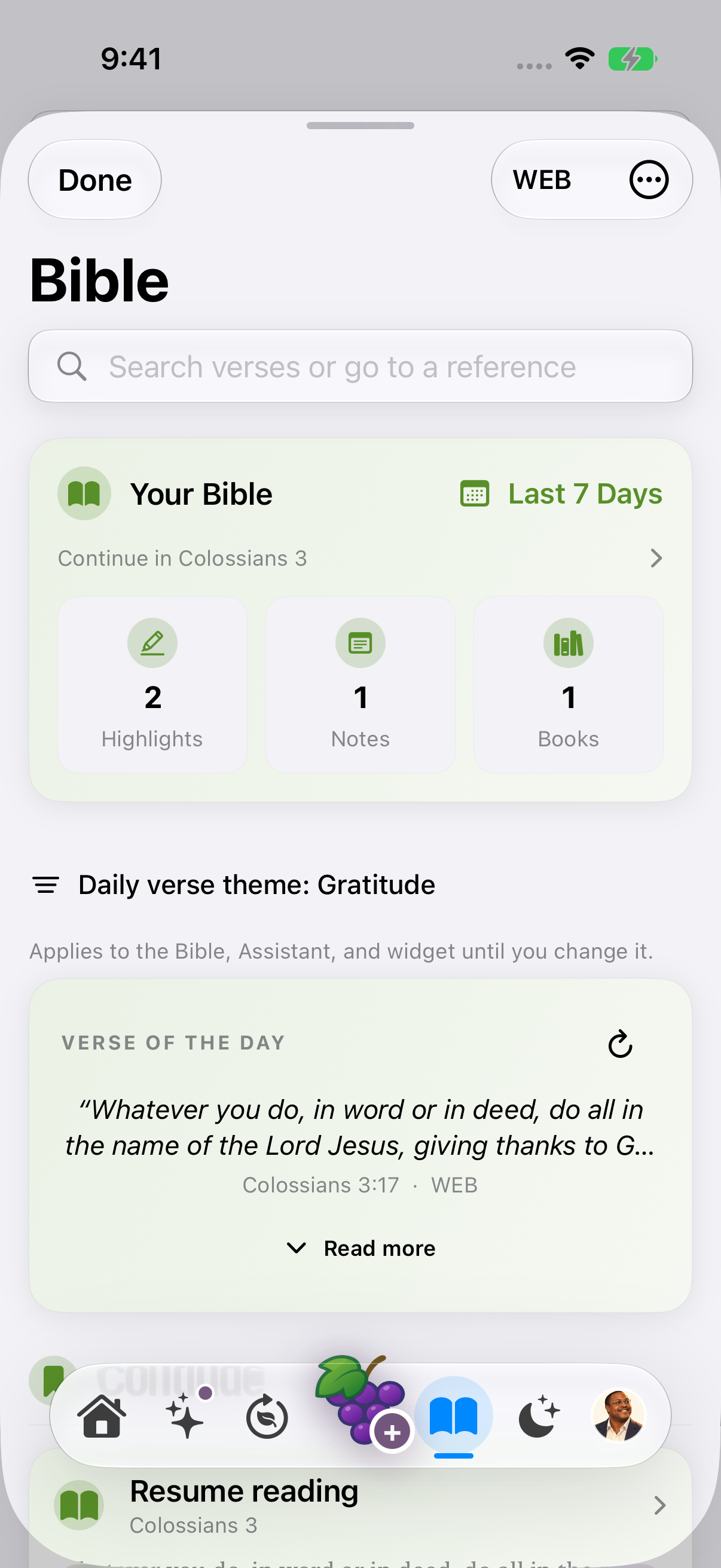
Light appearance: the Bible hub uses the System background. 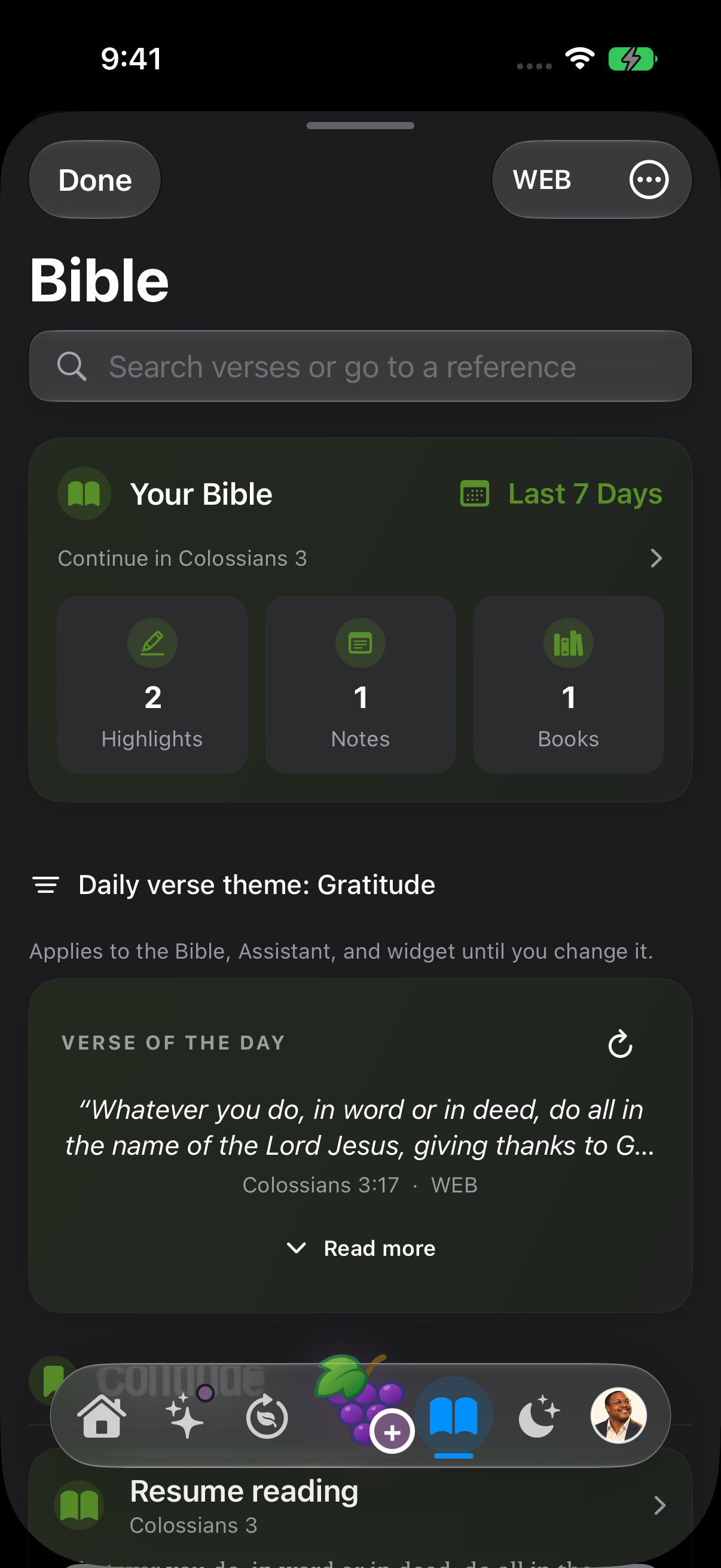
Dark appearance: the same Bible hub and reading history. Find a reference
In Search verses or go to a reference, enter a reference such as John 3:16 and submit with the keyboard search key. Choose Go to John 3:16. The reader targets the reference you selected. Check the book, chapter, translation and numbered verse; scroll if necessary.
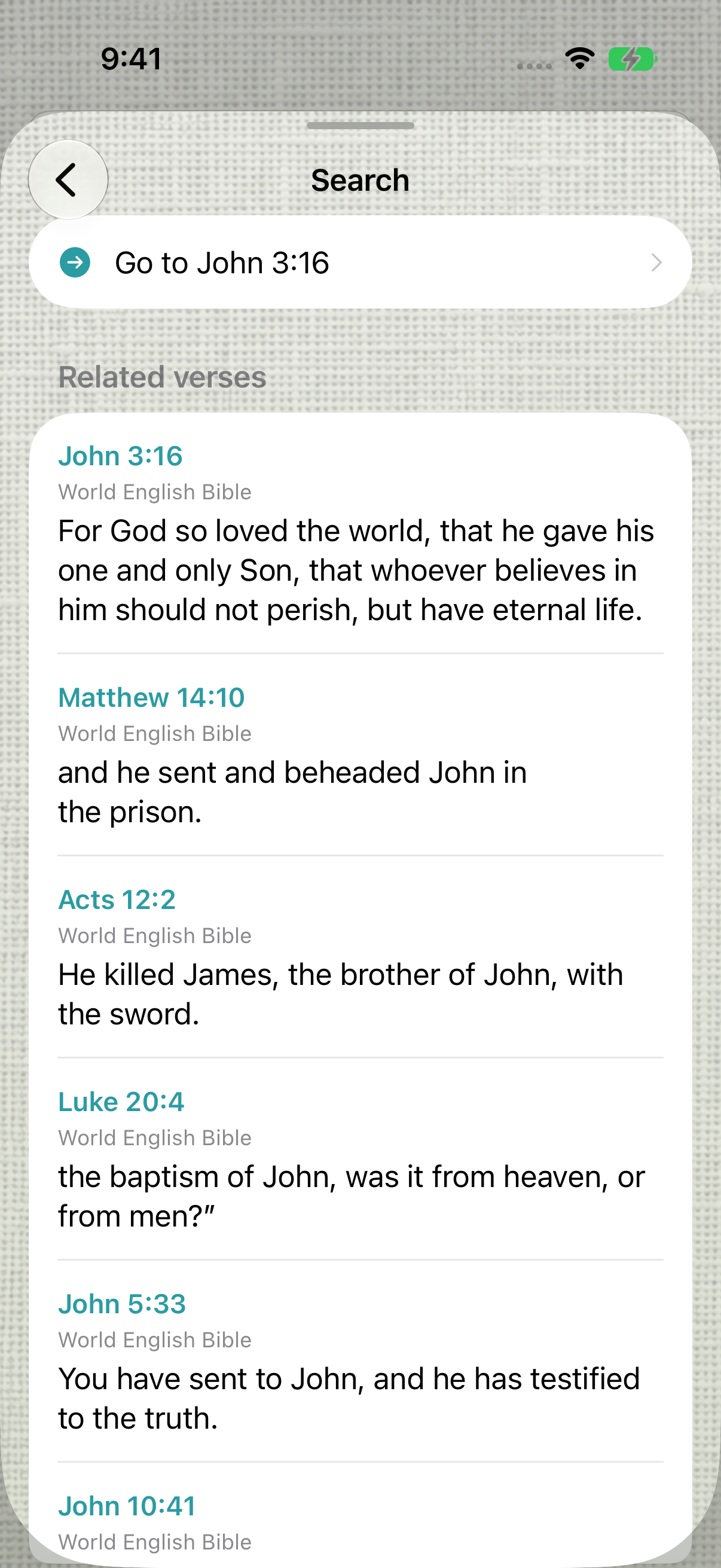
Submit the reference with the keyboard search key, then choose Go to John 3:16. Open verse actions
Press and hold the verse you want to mark. Choose Highlight in its menu.
Choose and check a color
Choose a color, such as Yellow, and confirm the verse is highlighted. The sample highlight remained after relaunch.
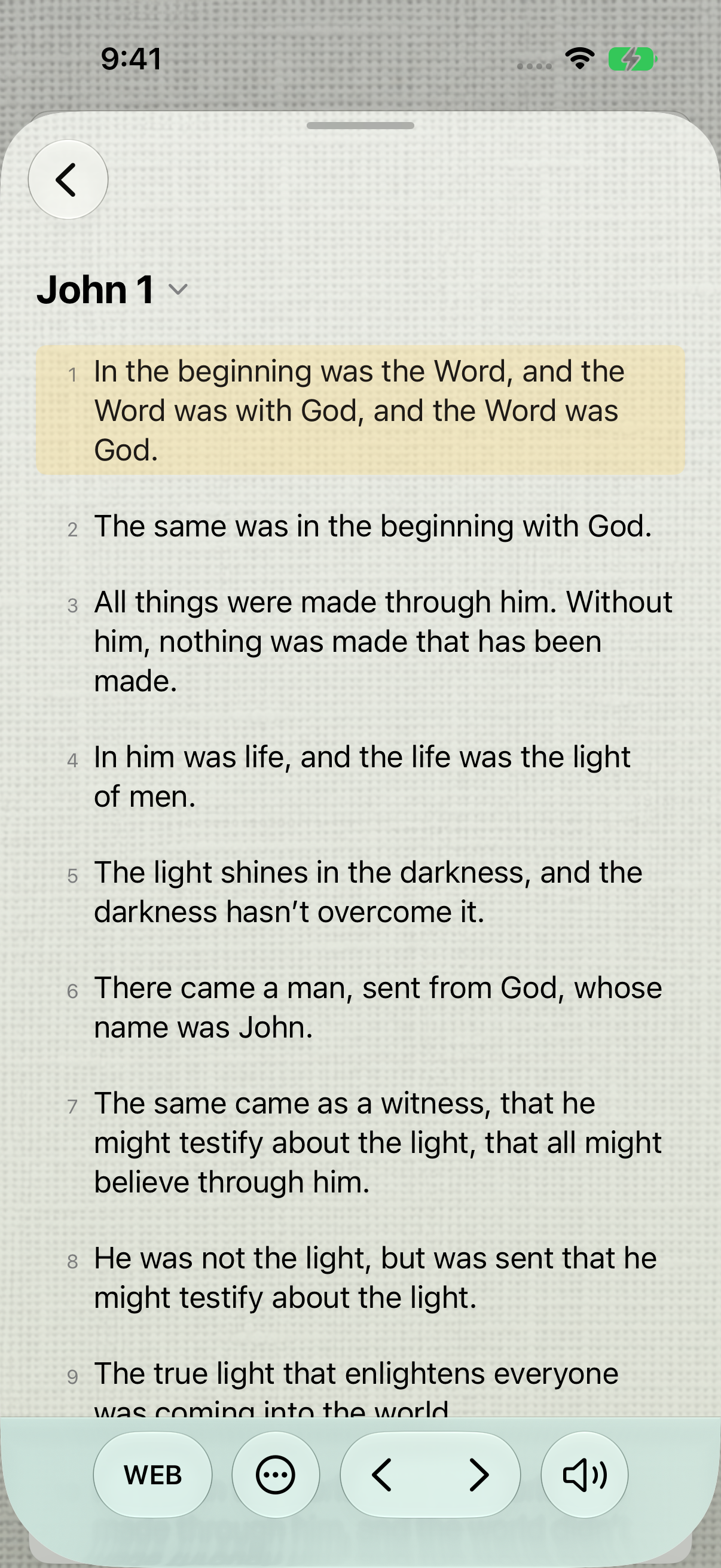
The selected color remains visible on the verse. The example uses the World English Bible. Add a study note
Press and hold a verse and choose Add Note. Write your thought, then tap Save. The sample note is linked to John 3:1.
Reopen the note
Press and hold the same verse and choose Edit Note to check the saved wording. Use Save after changes, or Cancel to leave this check without further edits.
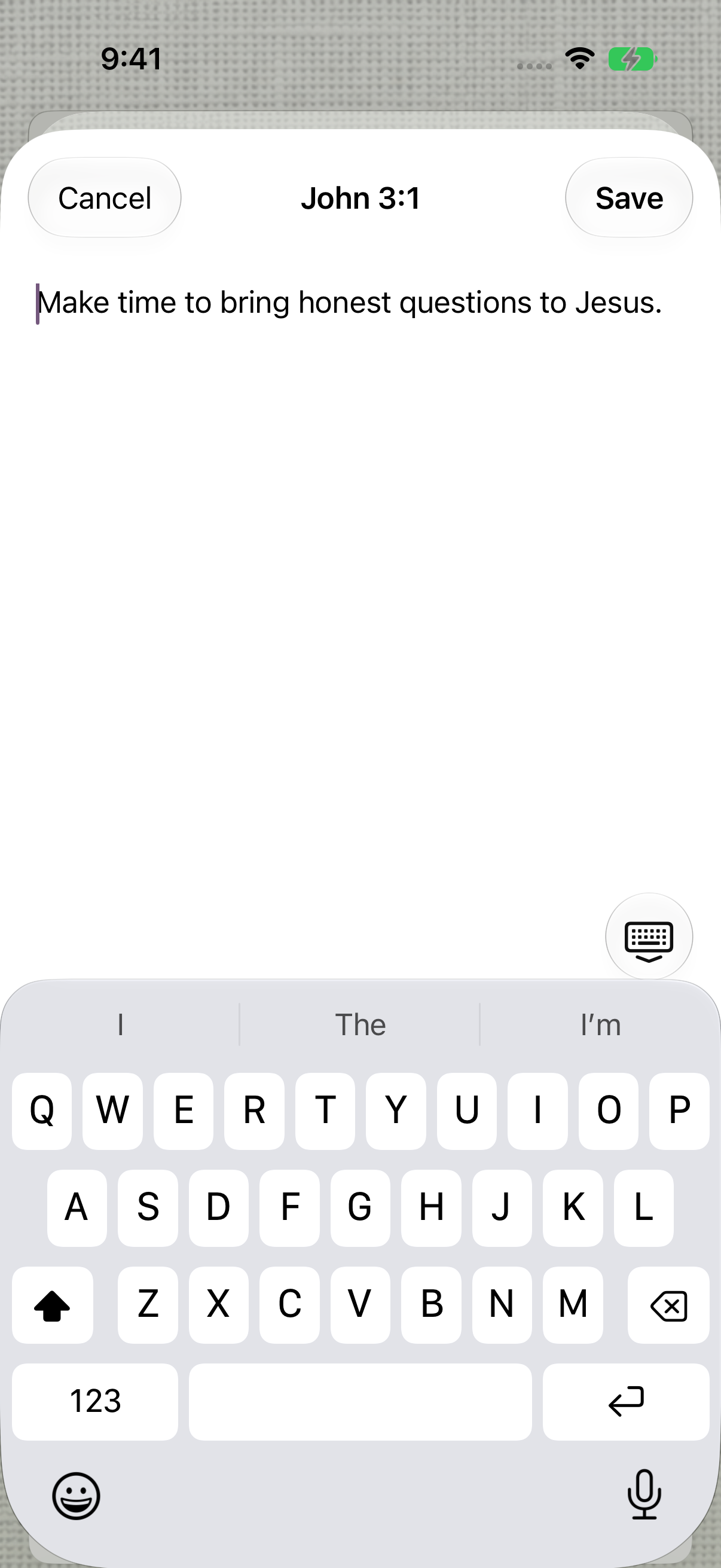
Edit Note reopens the saved wording for the selected verse.
Keep exploring
If something looks different
Checked against MyPraise App 1.1.0 · 2026-09-29
Before you begin
- For MyPraise App 1.1.0. Apple has approved this version; availability depends on the owner’s manual App Store release.
- Earlier MyPraise App 1.1.0 (34) recording. Screens may differ from the released app.
- Open the Bible hub. Examples use the World English Bible, John 3:16 for reference search and John 1:1 for highlighting. The video demonstrates highlighting; search is shown in the screenshots.
- Video and screenshots retain their original capture dates and build provenance; most existing walkthroughs were recorded with 1.1.0 (34). They are not new build 53 recordings.
- Written navigation guidance was reviewed against approved build53 source on September29. The existing clip shows earlier chapter-start behavior and has not been rerecorded.
The screen looks different.
Guide screens may come from different versions of MyPraise App. Always download the latest MyPraise App from the App Store.
If a control is still missing, open Settings → Support for help.
Why does the older video open at the chapter’s beginning?
The retained recording shows build34. The approved build53 reader targets the selected verse. Check the displayed reference and scroll if necessary; this updated written guidance is source-reviewed, not a newly recorded demonstration.