
Move between the app’s main areas
3 minRecognize the main navigation icons and move between Home, Bible, Profile, memory creation, and Assistant.
Watch the steps
Connecting playback controls…
Read the on-screen captions
- Open Bible; Done returns to Home
- Open Profile; use Home to return
- Open New memory; Close leaves the empty form
- Open Assistant; drag its sheet handle down to return
- Reflection opens a separate flow
- In this example, Close then Done returns Home
Step by step
Recognize the navigation bar
Along the bottom, Home uses a house, Assistant uses sparkles, Reflection uses a leaf and circular arrow, Bible uses a book, Dream Mode uses a moon, and Profile uses your portrait. The central grape-and-plus control opens New memory.
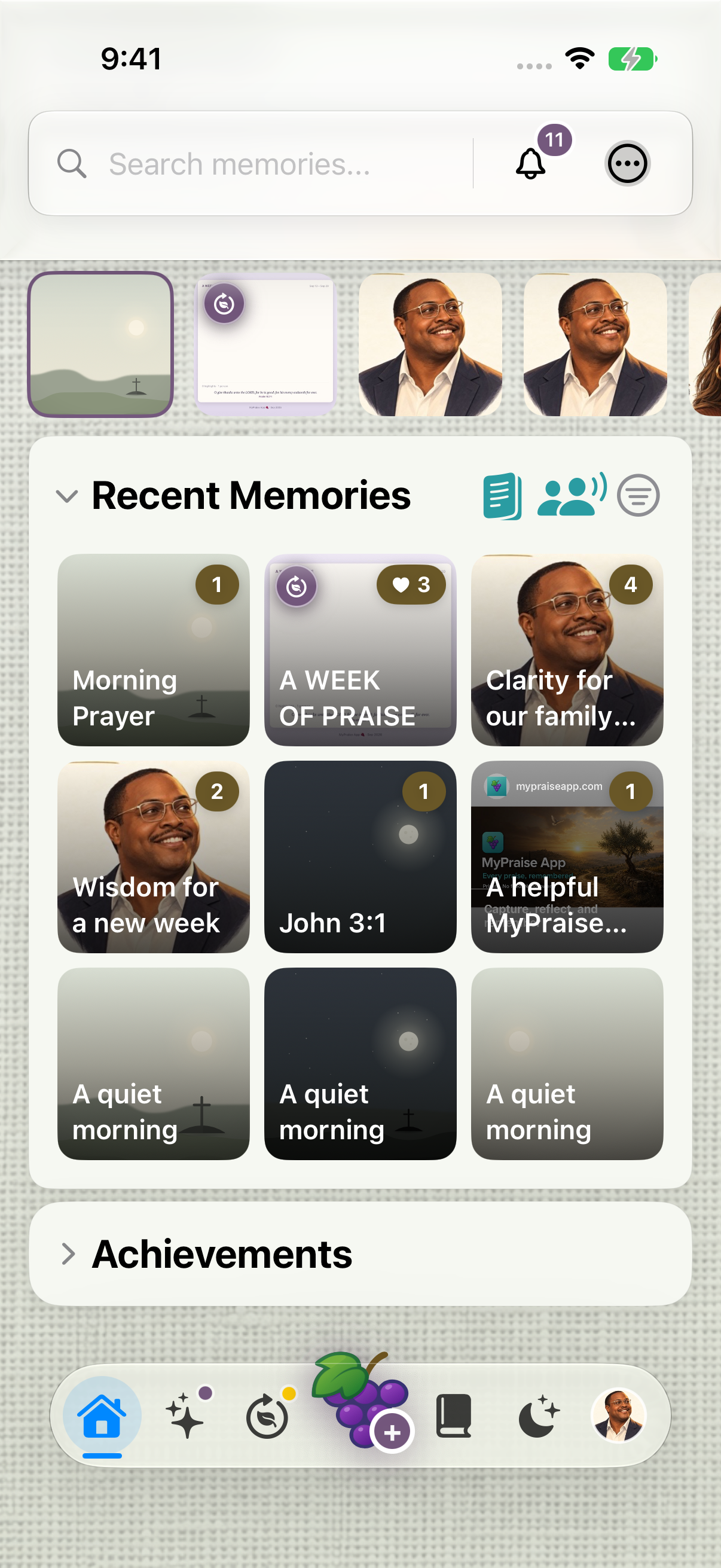
Use the floating bar near the bottom to move between the main areas. The grape-and-plus button opens New memory. Visit Bible and Profile
Choose Bible to open Scripture. Done returns to Home in this preview. Choose your portrait to open Profile; use the Home house in the floating bar to return.
Open the memory form
Choose the central New memory control. If you only wanted to look, Close new memory returns from the empty form to Home. This example does not enter or discard a saved memory.
Open Assistant
Choose the sparkles icon to open MyPraise App Assistant as a sheet. Expand opens its full-screen presentation. To dismiss the sheet, drag downward from its top handle; dragging within its content may only resize or scroll it. The verified sheet-handle gesture returns to Home.
Return from Reflection
Reflection opens a separate flow. In this recorded example, Close leads to the Amen screen and Done returns Home. Your next screen may depend on the reflection already in progress. For the moon icon, follow the related Dream Mode lesson.
Keep exploring
If something looks different
Checked against MyPraise App 1.1.0 · 2026-09-20
Before you begin
- For MyPraise App 1.1.0. Apple has approved this version; availability depends on the owner’s manual App Store release.
- Earlier MyPraise App 1.1.0 (34) recording. Screens may differ from the released app.
- Begin on Home after onboarding. This preview uses the floating navigation bar with a central grape-and-plus New memory button.
- Video and screenshots retain their original capture dates and build provenance; most existing walkthroughs were recorded with 1.1.0 (34). They are not new build 53 recordings.
The screen looks different.
Guide screens may come from different versions of MyPraise App. Always download the latest MyPraise App from the App Store.
If a control is still missing, open Settings → Support for help.
Why does dragging down not close Assistant?
Start the downward gesture on the small handle at the top of the Assistant sheet. Dragging inside the content may scroll or resize it instead. Reflection uses its own controls; the recorded example returns through Close, then Done.