
Set a reminder from a suggestion
3 minSchedule a one-time reminder to return to a suggested memory, after reviewing its date and confirming.
Watch the steps
Connecting playback controls…
Read the on-screen captions
- Open Notifications → Memory Suggestions
- Open the memory you want to revisit
- Scroll to Follow up on this memory
- Review the reminder date and time
- Choose Create reminder to confirm
- MyPraise App confirms the reminder is scheduled
Step by step
Open the suggested memory
From Home, dismiss a notification preview if it covers the controls. Open Notifications → Memory Suggestions, then open a suggestion with a saved starting memory.
Review the follow-up time
Scroll to Follow up on this memory. Review the date and time next to Remind me. The example retains September 21, 2026 at 9:00 AM. The reminder stays on this device.
Confirm the reminder
Choose Create one-time reminder. Read the confirmation, then choose Create reminder. Nothing is scheduled before confirmation. If iOS asks for notification permission, review the choice before allowing notifications.
Check the scheduling result
Look for Reminder Created and Reminder scheduled. This confirms scheduling, not delivery. The memory itself is not changed. Actual delivery can depend on your device notification settings.
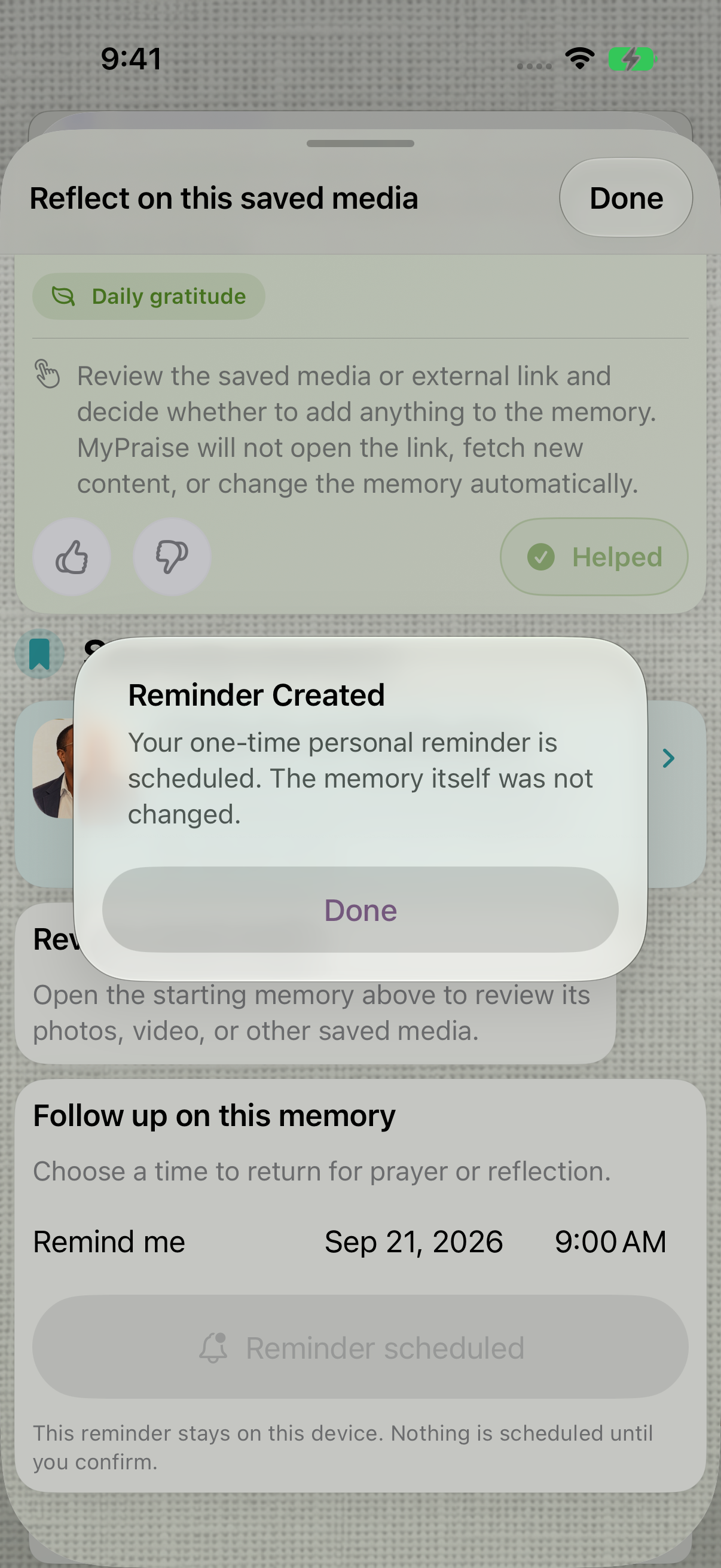
Reminder Created confirms scheduling. Actual delivery is not demonstrated here.
Keep exploring
If something looks different
Checked against MyPraise App 1.1.0 · 2026-09-20
Before you begin
- For MyPraise App 1.1.0. Apple has approved this version; availability depends on the owner’s manual App Store release.
- Earlier MyPraise App 1.1.0 (34) recording. Screens may differ from the released app.
- Begin with an available saved-memory suggestion. The example uses fictional sample content and schedules September 21 at 9:00 AM; use a future time appropriate for you. Notification permission may be requested.
- Video and screenshots retain their original capture dates and build provenance; most existing walkthroughs were recorded with 1.1.0 (34). They are not new build 53 recordings.
The screen looks different.
Guide screens may come from different versions of MyPraise App. Always download the latest MyPraise App from the App Store.
If a control is still missing, open Settings → Support for help.
Why does Create one-time reminder appear again when I reopen the suggestion?
In this preview, the button returns to its initial label when the suggestion is reopened. That label alone does not prove the scheduled reminder was removed. Avoid confirming another reminder just to test the button. This guide verifies the scheduling confirmation; persistence in the system notification queue and actual delivery still need verification.