
Set daily and personal reminders
3 minSave a daily reminder plan and add a personal reminder with your own message.
Watch the steps
Connecting playback controls…
Read the on-screen captions
- Open System Reminders in Settings.
- Choose how many reminders per day.
- Save the daily reminder window.
- Choose Create personal reminder.
- Turn on Custom Message and write your words.
- Save. The app confirms Reminder Created.
- Choose OK and return to the list.
- Review your active reminder. Delivery is not shown.
Step by step
Open System Reminders
Open Profile, then Settings. Search for System and choose System Reminders. Check the delivery status at the top; this example shows System alerts are on. Manage in-app guidance is a separate control.
Save the daily plan
Scroll to Daily Reminder Window. Use plus or minus beside How many per day. This example changes two to three and retains the displayed 8:00 AM–9:00 PM window. Choose Save daily reminder window.
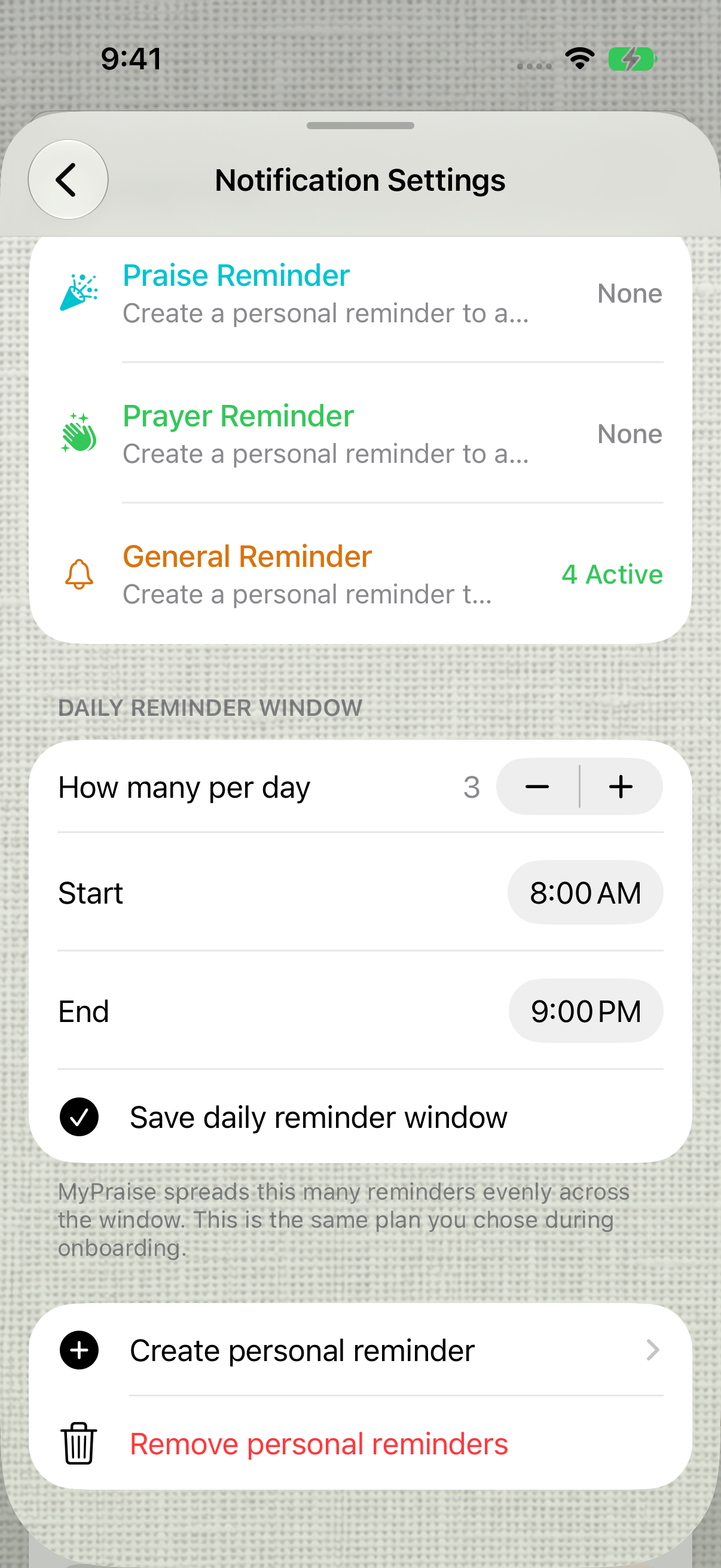
Save the daily plan after choosing the count. Add your own reminder
Choose Create personal reminder. Review Type, Frequency and Reminder time. Turn on Custom Message and enter your words; this example keeps Praise Reminder, Daily and the displayed time, with Include Photo off.
Save and review
Choose Save personal reminder, then OK on Reminder Created. Review your entry under Personal reminders. A saved or active entry confirms the app has scheduled it; it does not confirm that a device displayed it.
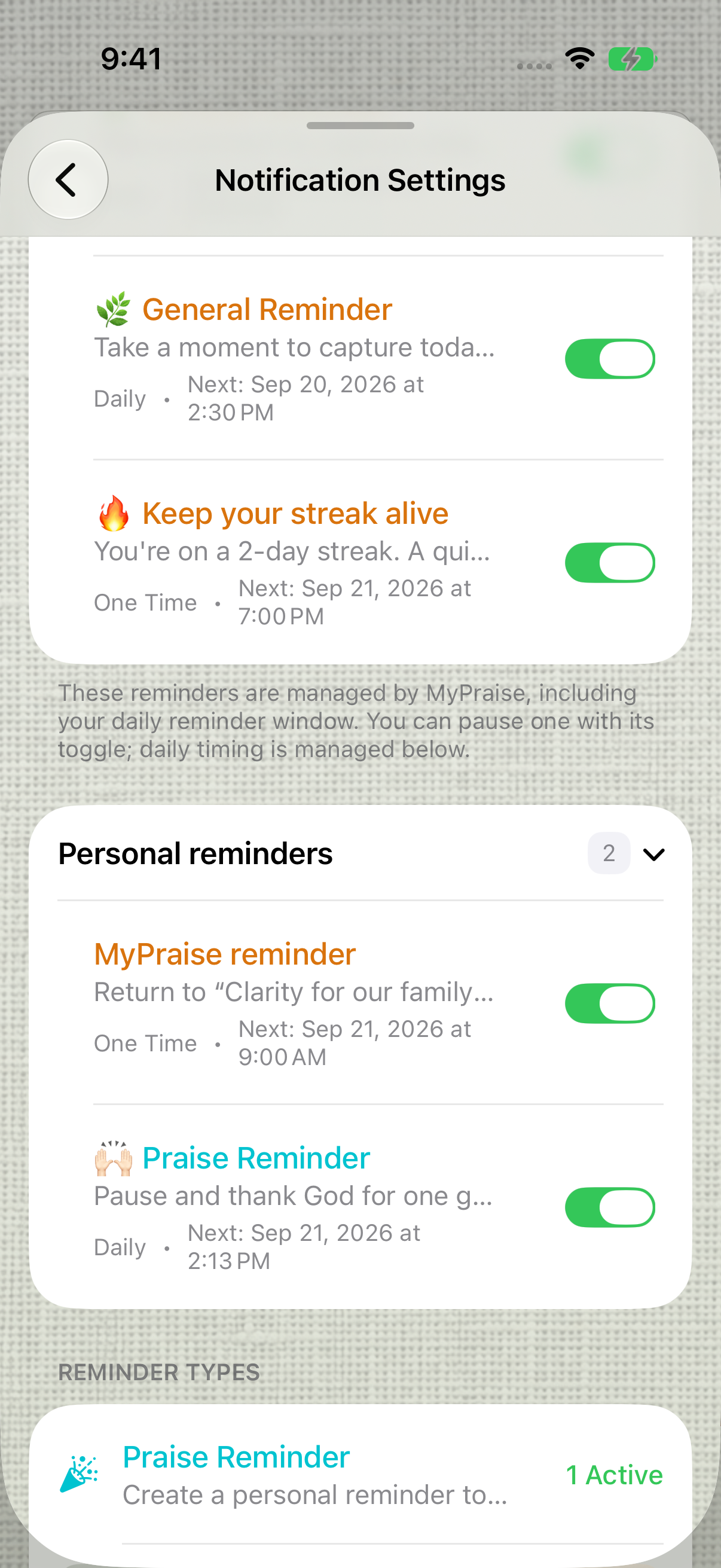
The saved personal reminder appears in the list. Actual delivery is not shown. Switch a personal reminder off or on
In Personal reminders, use the switch beside the reminder. In this preview, switching it off dims the row and adds Disabled; switching it back on restores the active appearance and count. The message and scheduled time stay in the list. These screenshots verify the app’s switch state, not whether an alert is suppressed or delivered on a real device.
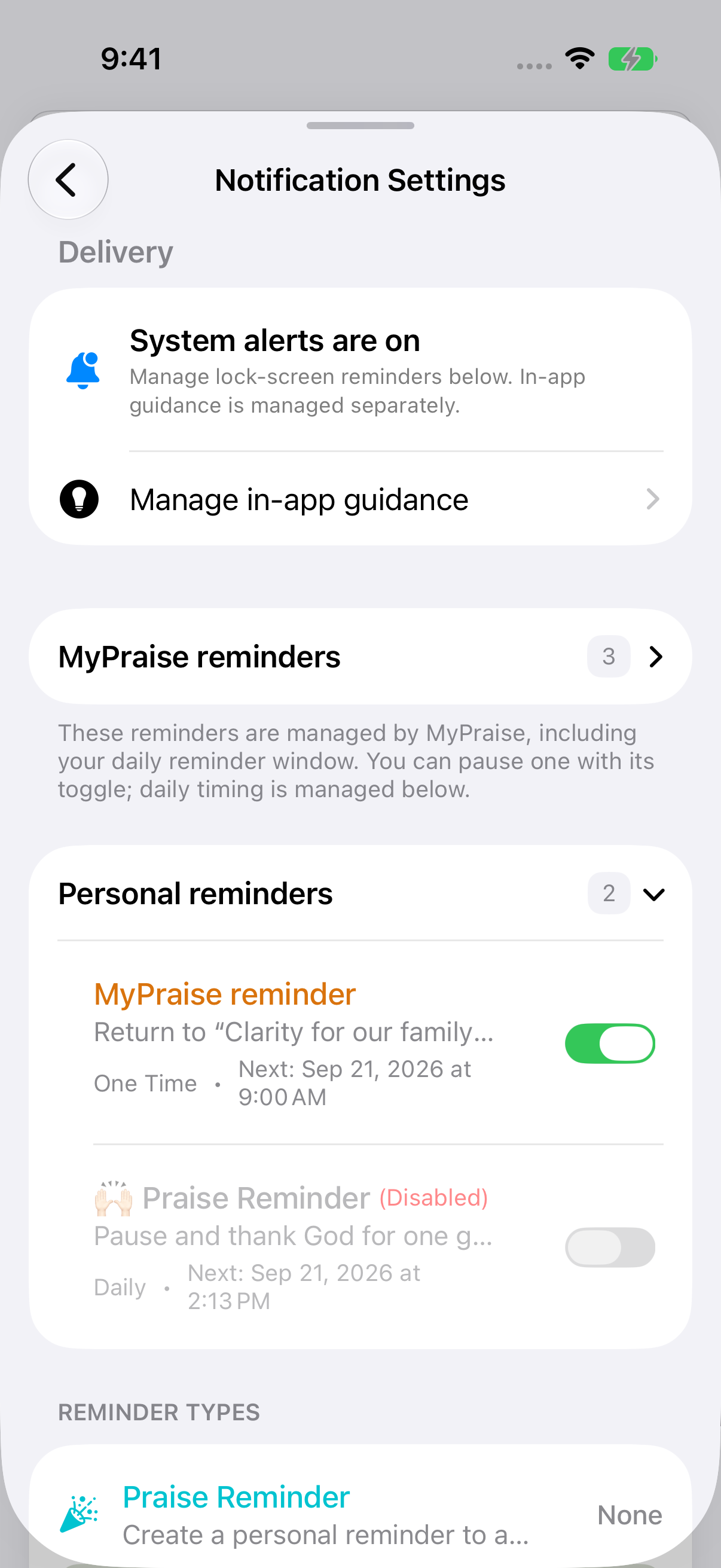
Switch off: the reminder is marked Disabled. Its saved message and time remain visible. 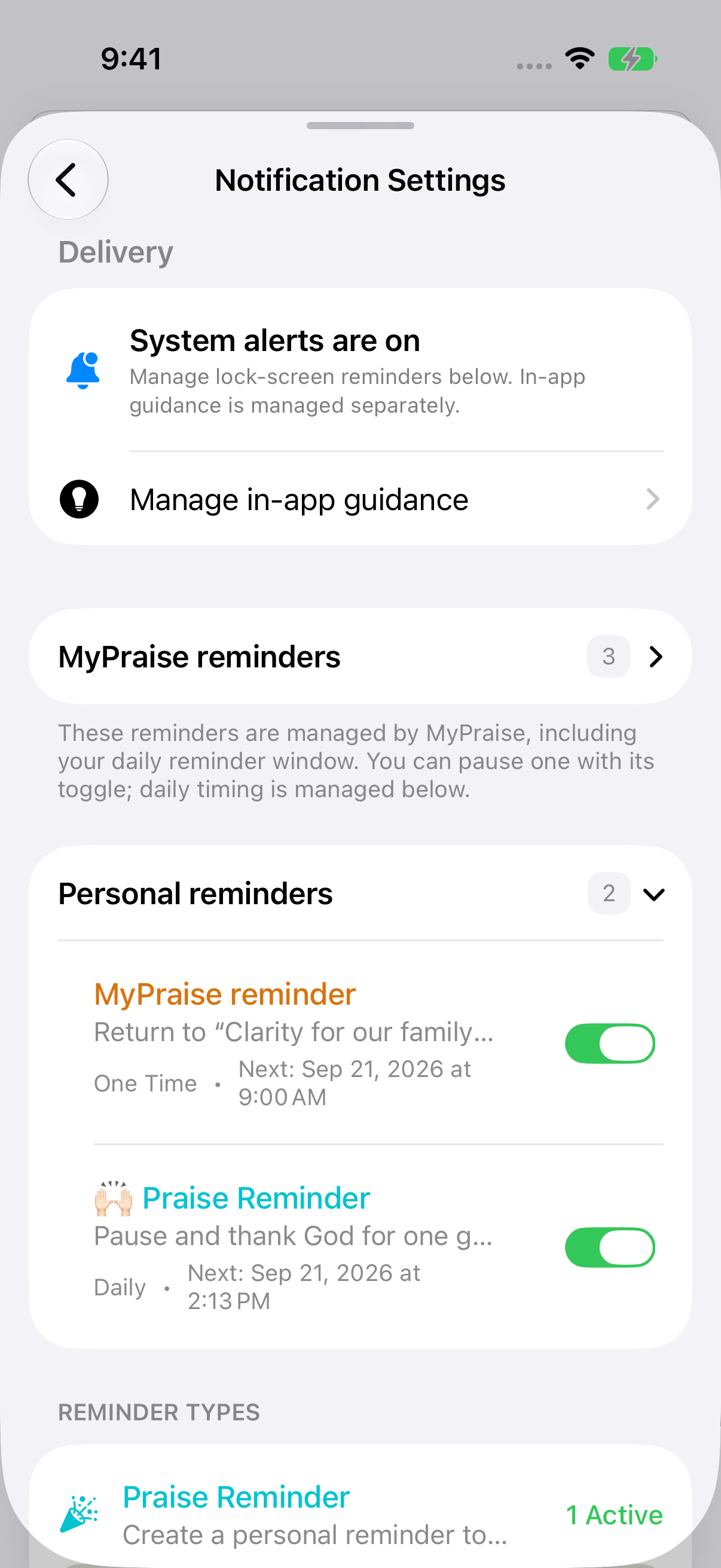
Switch back on: the row and active count return. Device delivery is not demonstrated.
Keep exploring
If something looks different
Checked against MyPraise App 1.1.0 · 2026-09-20
Before you begin
- For MyPraise App 1.1.0. Apple has approved this version; availability depends on the owner’s manual App Store release.
- Earlier MyPraise App 1.1.0 (34) recording. Screens may differ from the released app.
- This sample already has system notification permission. Permission prompts and real-device delivery are not demonstrated.
- Video and screenshots retain their original capture dates and build provenance; most existing walkthroughs were recorded with 1.1.0 (34). They are not new build 53 recordings.
The screen looks different.
Guide screens may come from different versions of MyPraise App. Always download the latest MyPraise App from the App Store.
If a control is still missing, open Settings → Support for help.
Does an active reminder mean it was delivered?
No. This walkthrough verifies the saved plan and reminder entry. Actual delivery depends on system notification permission and device settings, including Focus. Delivery, permission changes and cancellation are not demonstrated here.
The edit screen does not match my saved reminder.
In the reviewed 1.1.0 (34) preview, opening a personal reminder showed default text and the current time instead of its saved custom message and time. Cancel returned to the unchanged list, but reopening did not resolve the mismatch. If you see this, choose Cancel without saving and report it through Support. Editing the saved reminder is not verified in this baseline.