Open and filter notifications
3 minFind notifications, filter reminders or updates, follow an item, and review available history.
Watch the steps
Connecting playback controls…
Read the on-screen captions
- Open Notifications from Home
- Review the All list
- Choose Reminders to filter the list
- Open Weekly Reflection to reach its setup
Step by step
Open Notifications
From Home, tap the bell labeled Notifications. If a notification peek covers the top area, close that peek first.
Review All
Review the items in All. The sample list contains helpful updates and reminders, grouped by timing.
Filter reminders
Tap Reminders to focus the list on reminders. The example shows Now and Later sections.
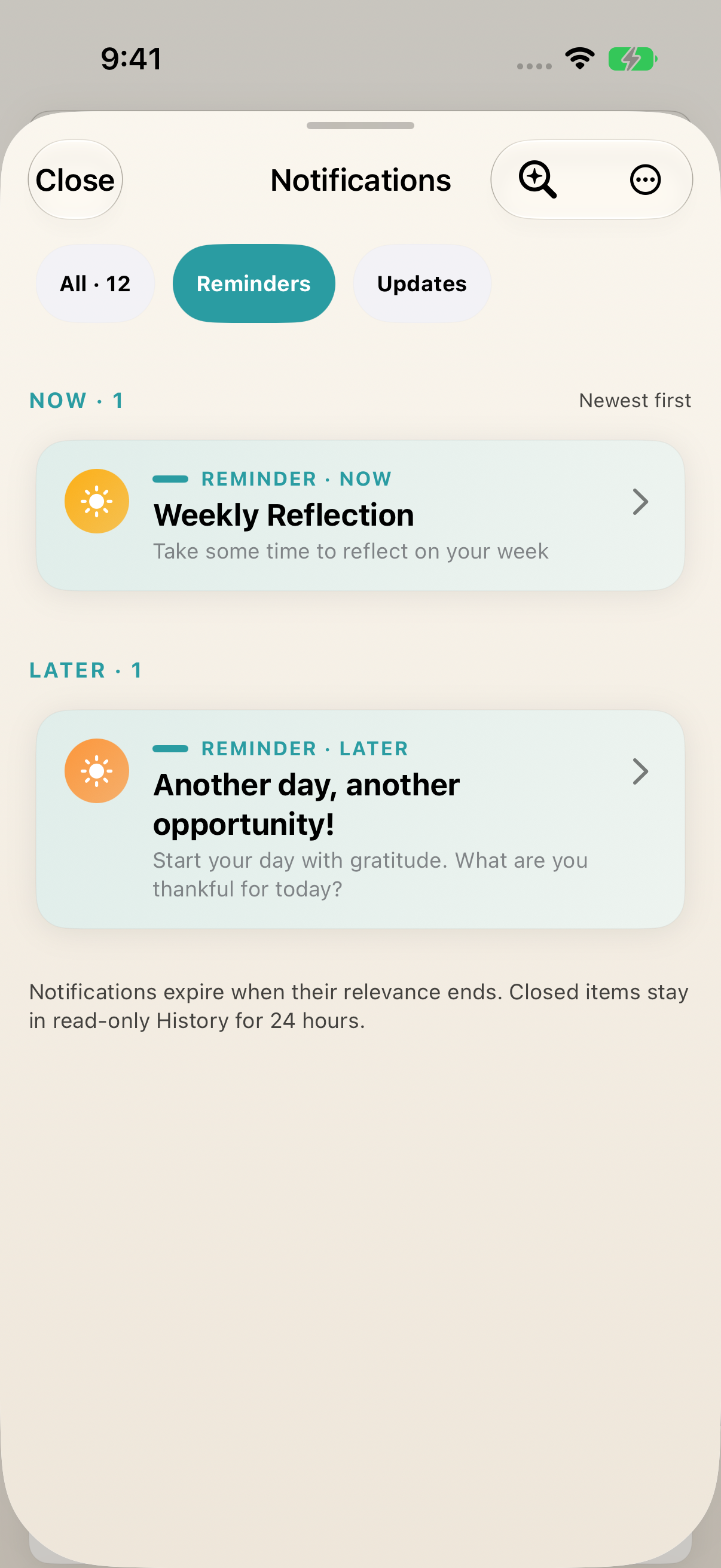
The Reminders filter narrows the list. Available items and counts depend on your app state. Follow an item
Tap Weekly Reflection, when available, to reach Reflection setup. Opening that screen does not complete a Reflection Report. Other notification types can lead elsewhere.
Review available history
Return to Notifications and choose Reminders. When Today’s history is present, tap History to expand it. The sample shows an Expired item and an Action completed item. The screen describes closed items as read-only history for 24 hours.
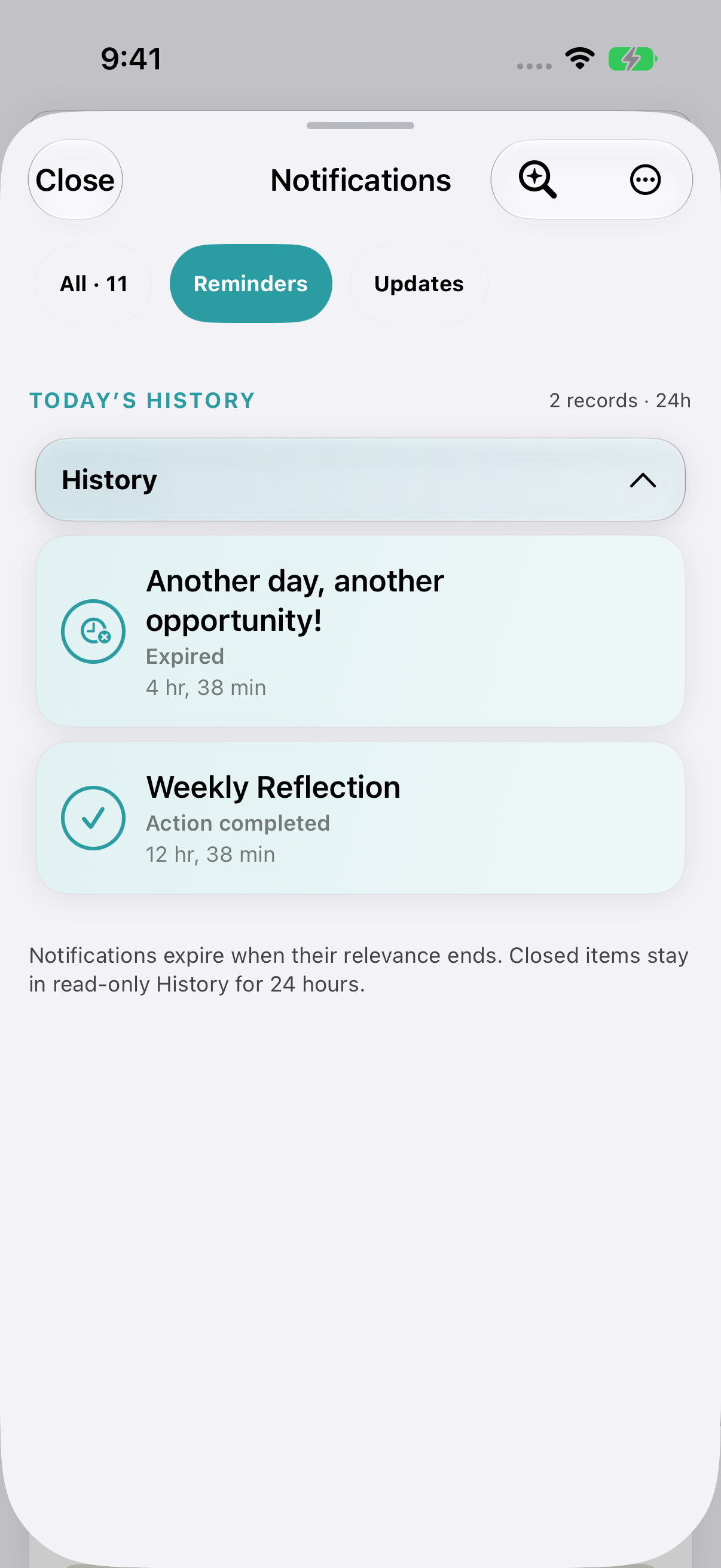
Expand History when available to review closed items. This sample includes Expired and Action completed records. Switch to updates
Tap Updates to see the available helpful updates. Tap All to return to the combined list. Counts and items reflect your current app state.
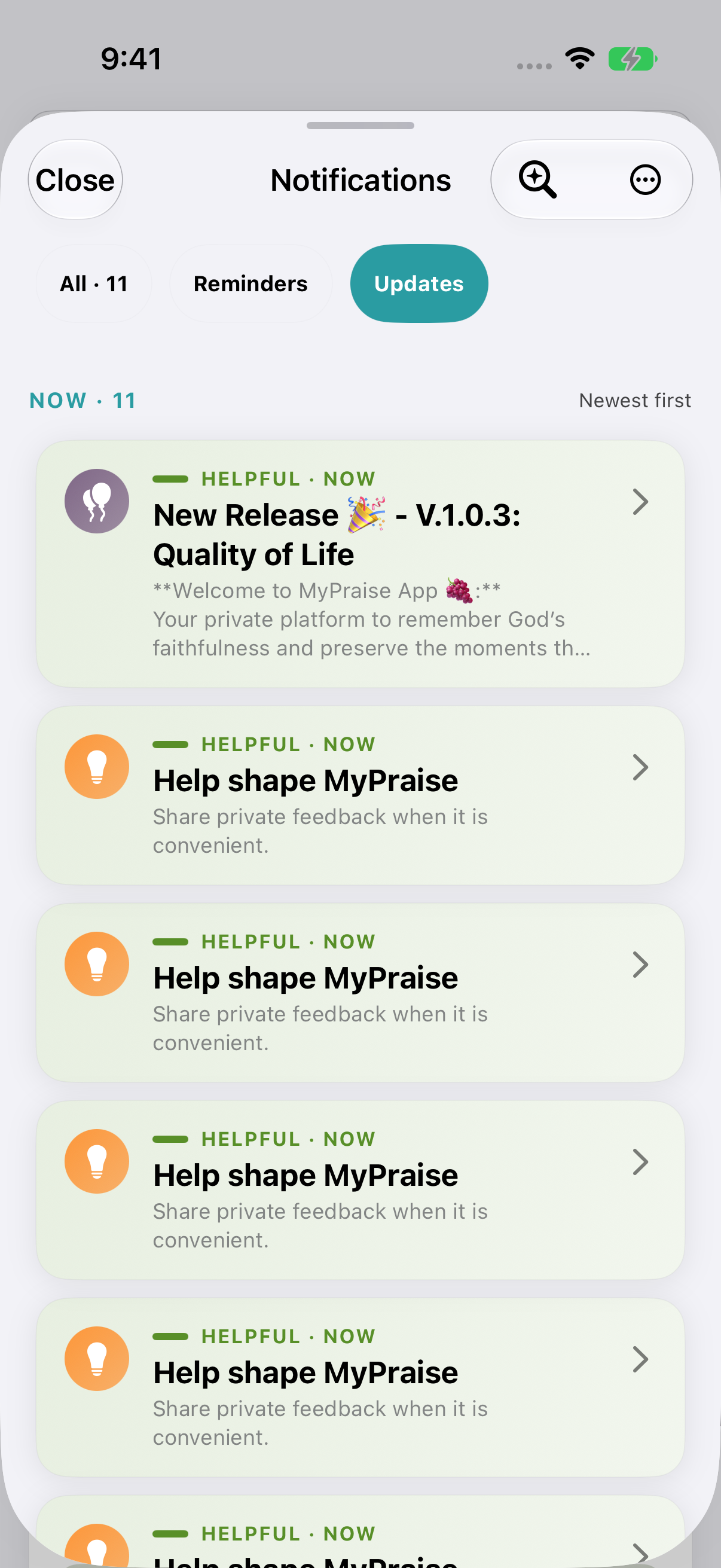
Updates narrows the list to available helpful updates. Items and counts vary.
Keep exploring
If something looks different
Checked against MyPraise App 1.1.0 · 2026-09-20
Before you begin
- For MyPraise App 1.1.0. Apple has approved this version; availability depends on the owner’s manual App Store release.
- Earlier MyPraise App 1.1.0 (34) recording. Screens may differ from the released app.
- Use the notification center with sample items present. The example follows Weekly Reflection to its setup screen; your available items will differ.
- The clip demonstrates opening, filtering and following an item. The additional screenshots show History and Updates; available records and counts will differ.
- Video and screenshots retain their original capture dates and build provenance; most existing walkthroughs were recorded with 1.1.0 (34). They are not new build 53 recordings.
The screen looks different.
Guide screens may come from different versions of MyPraise App. Always download the latest MyPraise App from the App Store.
If a control is still missing, open Settings → Support for help.
Why do my notification items look different?
The list depends on the reminders and helpful items available in your app. This sample shows a Weekly Reflection item; the lesson does not verify notification delivery or scheduling.