
Prepare and shape Assistant artwork
5 minDescribe an image and review artwork settings. This preview demonstrates preparation; successful image generation, refinement, and saving remain unverified.
Watch the steps
Connecting playback controls…
Read the on-screen captions
- Describe a subject, then choose Artwork & Cards.
- Review the artwork direction and image model.
- ChatGPT selects an external-provider option.
- Return to Automatic for this example.
- Choose Detailed to see more controls.
- Image type changes the intended format.
- Choose Soft watercolor for the visual style.
- Settings selected. Generation is not shown.
Step by step
Describe the subject first
Use a specific, non-personal example: “A small olive tree beside a sunlit window, peaceful mood, no words.” Keep the same subject while comparing styles so you can see what each setting changes.
Check artwork availability
In Profile → Settings, scroll to Assistant Artwork and review Generate Artwork and Artwork Backend. When available, Add to chat offers Artwork & Cards. If the option is absent, check the settings and device availability before proceeding. Expanded artwork brief options require Supporter or above; OpenAI artwork requires Believer and configured BYOK.
Shape the devotional artwork
When Shape the devotional artwork appears, review Image model and choose Simple or Detailed. Image type describes the format; Visual style describes the rendering. In Detailed, What should it feel like? sets the mood, Should it include words? controls lettering, and What is the image for? describes the intended use. The recorded example selects Devotional artwork and Soft watercolor while keeping the olive-tree subject. Expanded choices marked with the grape require eligible subscription access.
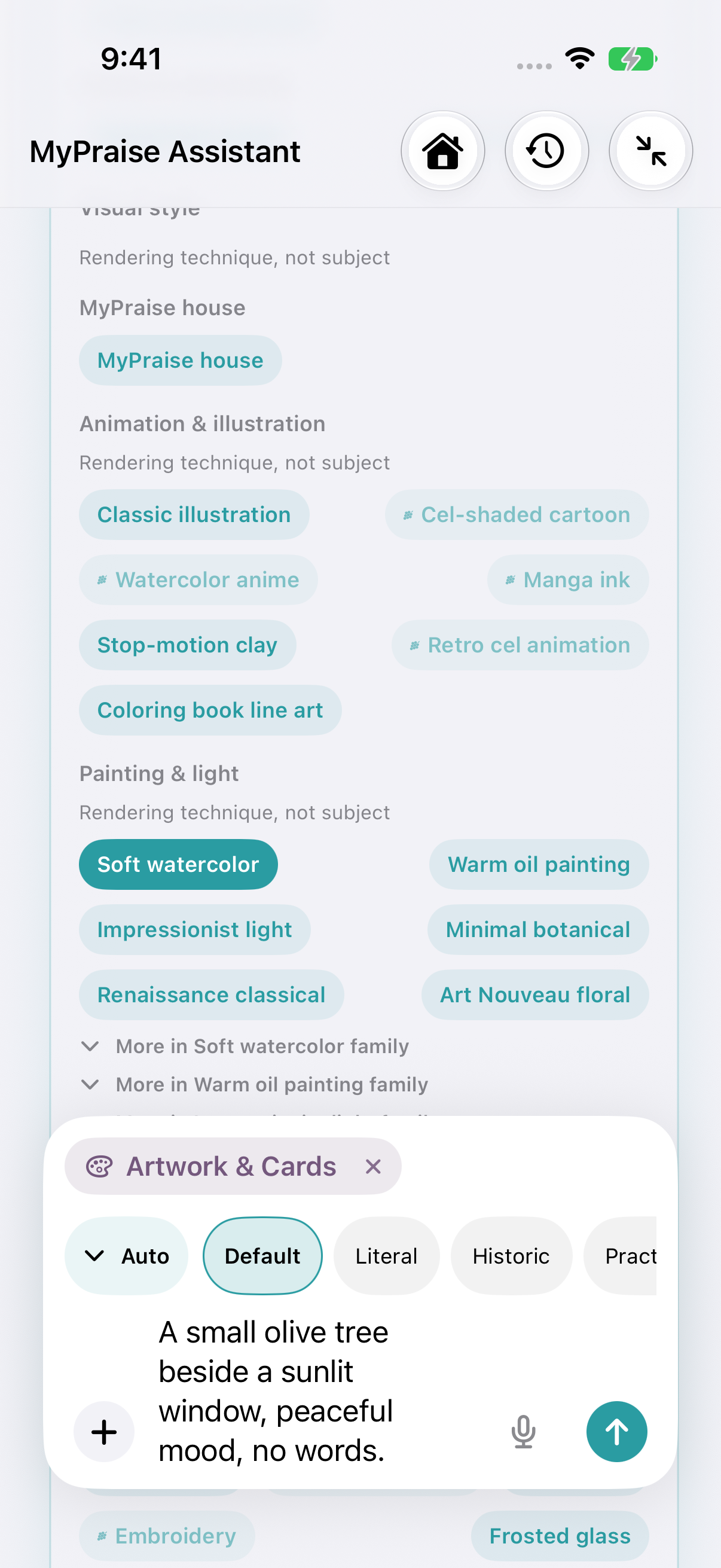
Olive-tree subject retained with Soft watercolor selected. earlier 1.1.0 recording. Review the model and any sharing request
Image model offers Automatic and, where available, ChatGPT. The recorded ChatGPT selection says “Opens Image Playground with ChatGPT selected.” This chooses an external-provider option in Apple’s experience, separate from an OpenAI API key entered in MyPraise App. Review the route and any consent before generating. Open Add My Profile personalization? to review Personalize assistant response and Personalize generated image; turn these off when the subject does not need your profile. The separate olive-tree generation check used both off.
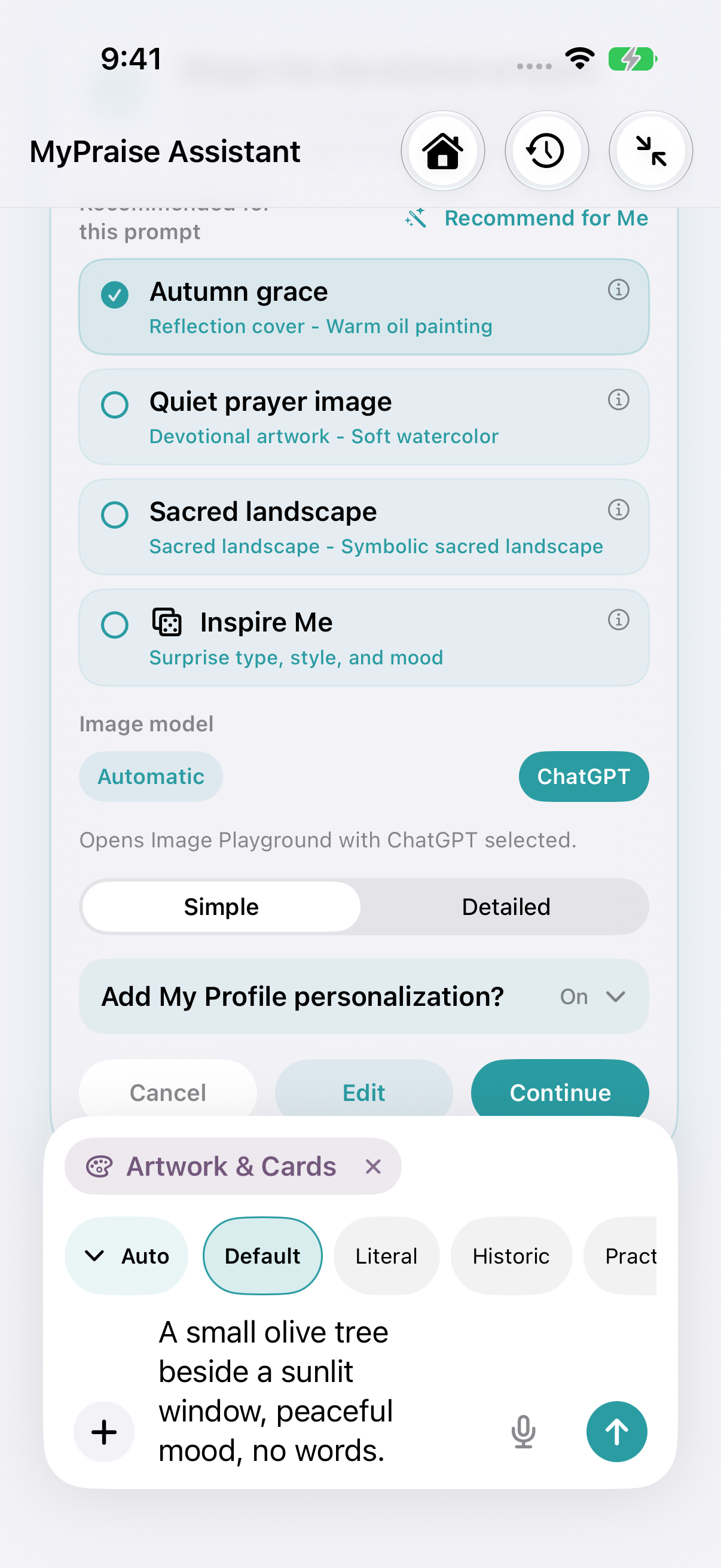
ChatGPT selected as the Image Playground model option; no generation submitted. earlier 1.1.0 recording. 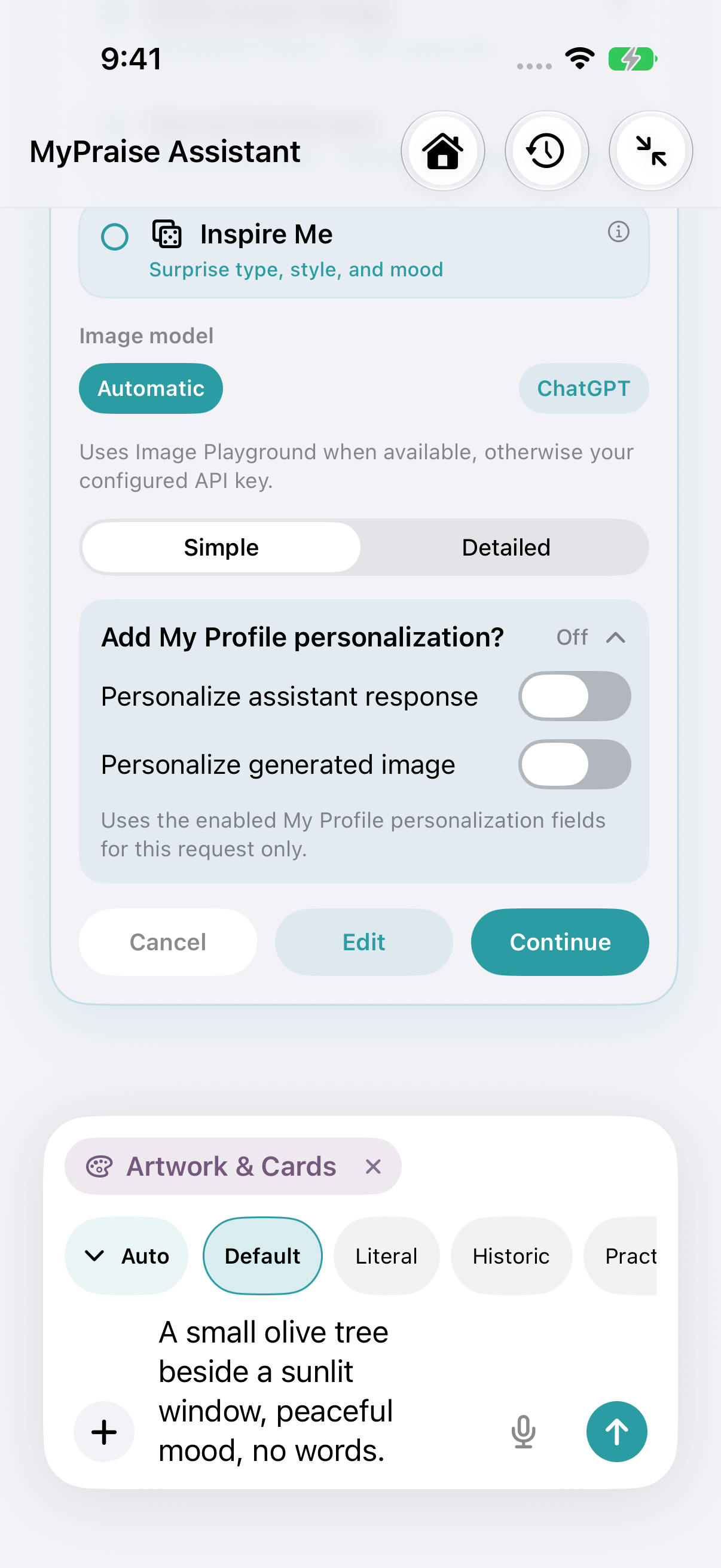
Both artwork profile-personalization controls off. earlier 1.1.0 recording.
Keep exploring
If something looks different
Checked against MyPraise App 1.1.0 · 2026-09-21
Before you begin
- For MyPraise App 1.1.0. Apple has approved this version; availability depends on the owner’s manual App Store release.
- Earlier MyPraise App 1.1.0 (34) recording. These instructions describe the preview build, not App Store release 1.0.3.
- Settings demonstration only: the video and screenshots contain no AI-generated artwork. They show the olive-tree prompt and controls, not image results. A completed generation, visual comparison, refinement and saved-image check still need a supported-device recording.
- The recorded endpoint is the artwork configuration screen. Two simulator generation checks returned text instead of an image. This lesson does not demonstrate a generated or saved image.
- Video and screenshots retain their original capture dates and build provenance; most existing walkthroughs were recorded with 1.1.0 (34). They are not new build 53 recordings.
The screen looks different.
Guide screens may come from different versions of MyPraise App. Always download the latest MyPraise App from the App Store.
If a control is still missing, open Settings → Support for help.
Why can’t I see Artwork & Cards?
Artwork generation can be disabled or unavailable for the device and configured routes. A visible settings option alone does not establish that image generation will succeed. Continue with the written instructions and check availability on a compatible device.
When should I change the image model?
Try clearer subject wording and a simpler scene first. A provider with different capabilities may handle realism, lettering, or complex composition differently, but output can still be wrong and external-provider privacy and usage limits apply.
Does the walkthrough show a completed generated image?
The control walkthrough shows the olive-tree prompt and artwork settings. In two isolated simulator checks, including normal indexing, confirming Generate returned an On-device text response; no Image Playground sheet or generated image was observed. Generation and saving therefore remain unverified for this lesson. A compatible-device check and native investigation are still needed.
What remains to verify after these settings?
A supported-device capture must show Continue, the Generate Artwork? confirmation, Image Playground opening, a completed olive-tree image, a refinement that changes one style or mood choice, and the actual save action followed by reopening the saved result. These are remaining verification targets, not completed steps in this recording. Recent Images is not a substitute for saving: the preview UI says unsaved images clear after three days.
How do subject, style and mood affect an image prompt?
The subject describes what should appear: in this example, an olive tree beside a sunlit window. Visual style describes how to render it, such as the recorded Soft watercolor choice. What should it feel like? describes the intended mood. Image type and What is the image for? add format and use guidance. Keep the subject fixed and change only one presentation choice when comparing results. These controls guide the request; this lesson has no generated images demonstrating their visual effect yet.