
Add a MyPraise App widget to your Home Screen
3 minPlace the Assistant Nudge widget on your iPhone Home Screen.
Watch the steps
Connecting playback controls…
Read the on-screen captions
- Touch and hold MyPraise App, then choose Edit Home Screen.
- Tap Edit, then Add Widget.
- Choose MyPraise App in the widget gallery.
- Review Assistant Nudge, then tap Add Widget.
- Tap Done to finish editing your Home Screen.
- Your MyPraise App widget is now on the Home Screen.
Step by step
Open Home Screen editing
On your iPhone Home Screen, touch and hold the MyPraise App icon. Choose Edit Home Screen.
Open the widget gallery
Tap Edit at the top of the Home Screen, then choose Add Widget.
Choose MyPraise App and add the widget
Choose MyPraise App in the widget gallery. This walkthrough uses the Assistant Nudge preview. Tap Add Widget.
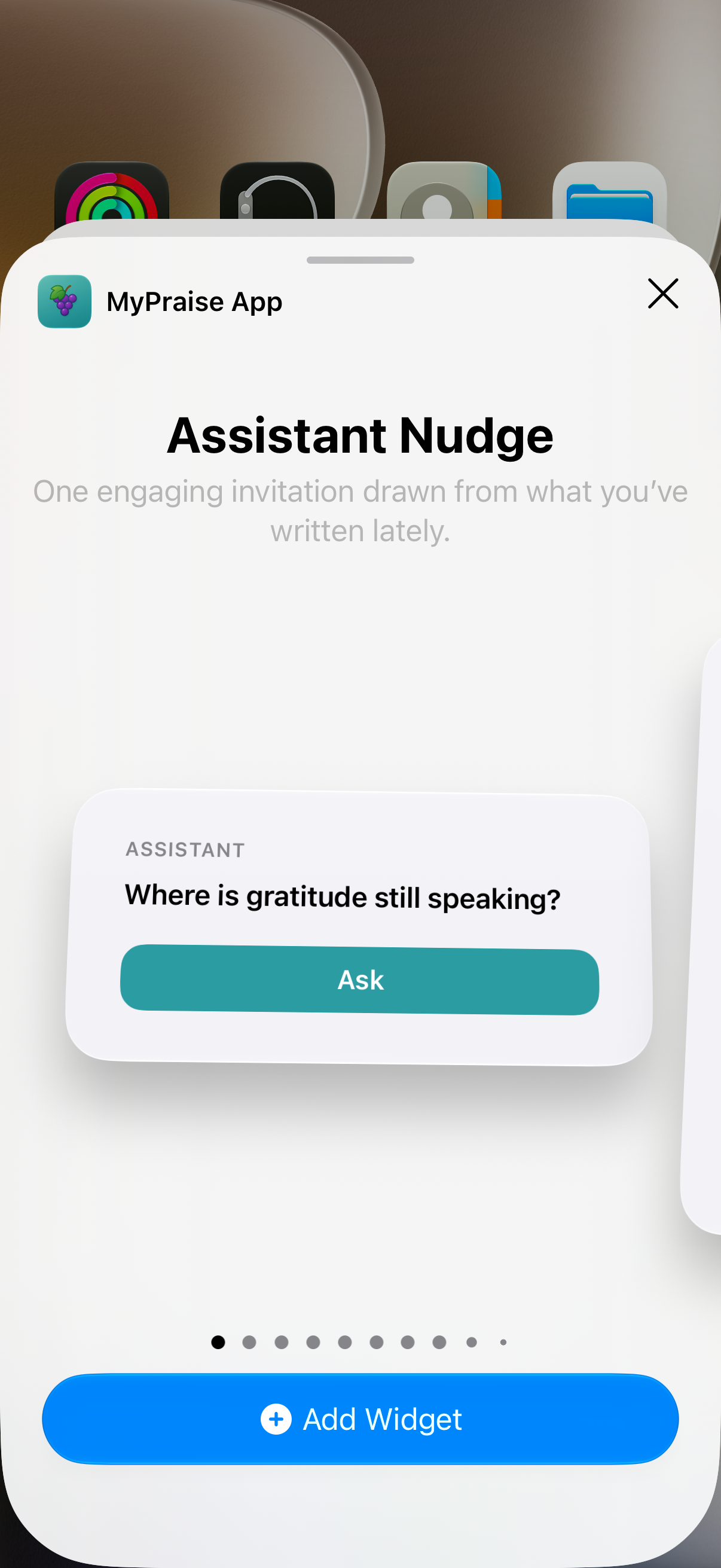
Review the Assistant Nudge preview before tapping Add Widget. Finish and check your Home Screen
Tap Done. Check that the MyPraise App widget appears on your Home Screen. The sample prompt in this recording may differ from yours.
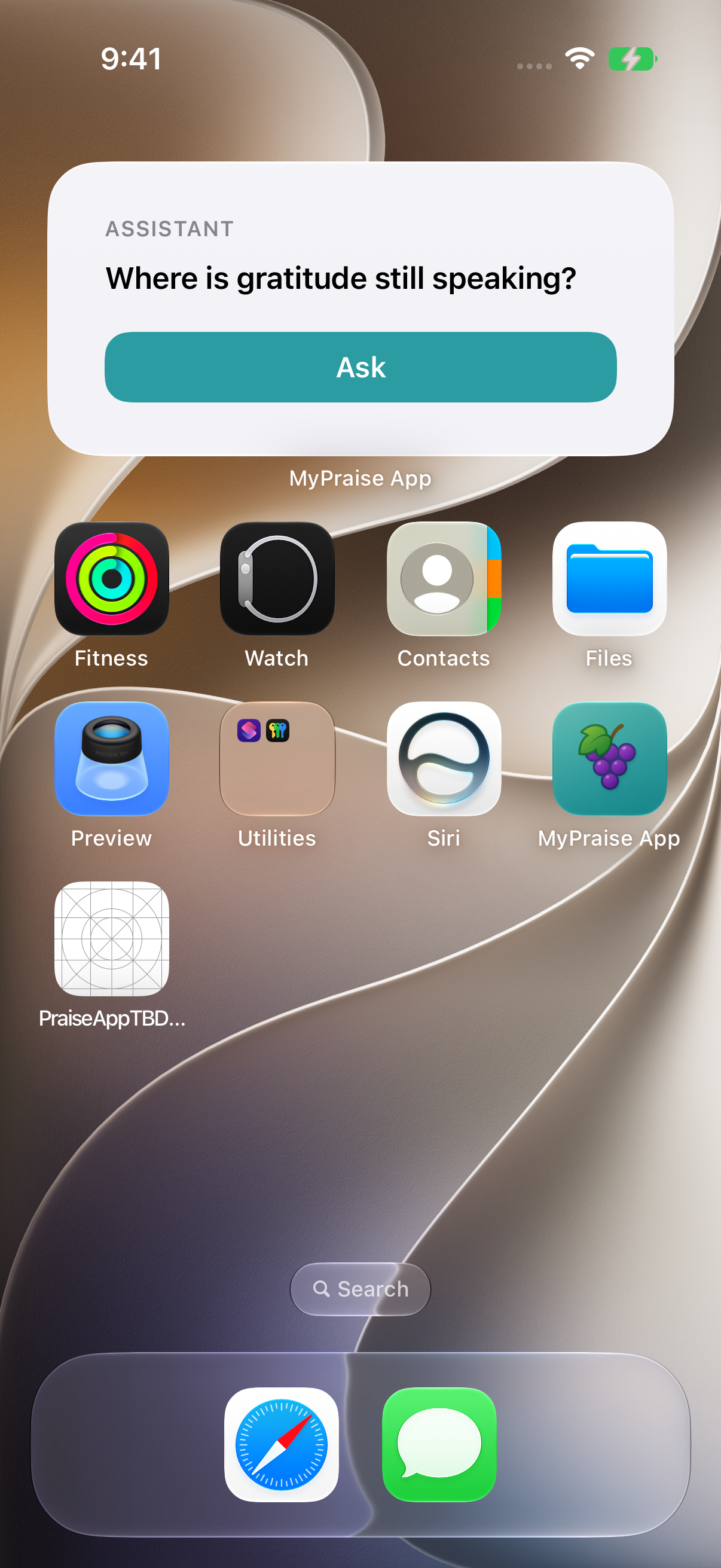
Assistant Nudge added to the Home Screen in the earlier 1.1.0 recording. The Ask action is outside this walkthrough.
Keep exploring
If something looks different
Checked against MyPraise App 1.1.0 · 2026-09-20
Before you begin
- For MyPraise App 1.1.0. Apple has approved this version; availability depends on the owner’s manual App Store release.
- Earlier MyPraise App 1.1.0 (34) recording. Screens may differ from the released app.
- An iPhone with MyPraise App installed. This walkthrough uses iOS 27 in an isolated simulator; menus can differ on other iOS versions.
- Video and screenshots retain their original capture dates and build provenance; most existing walkthroughs were recorded with 1.1.0 (34). They are not new build 53 recordings.
The screen looks different.
Guide screens may come from different versions of MyPraise App. Always download the latest MyPraise App from the App Store.
If a control is still missing, open Settings → Support for help.
Does this cover every widget, Siri, or Shortcuts?
This baseline verifies adding Assistant Nudge on the captured iOS 27 simulator. Other widgets, widget actions and settings, Siri, Control Center, and Apple Shortcuts execution remain unverified. Menus may differ on your iOS version.