
Choose a background color and texture
3 minPersonalize your app background with an available color and texture, then check that your choices stay selected.
Watch the steps
Connecting playback controls…
Read the on-screen captions
- Open Profile and scroll to Appearance
- Expand Appearance and find Color backgrounds
- Choose System, or an available color
- This example selects Sage
- Choose Canvas under Texture
Step by step
Open your Profile’s Appearance section
Tap Profile in the main navigation. Scroll past your Journey and activity details, then expand Appearance. Scroll to Color backgrounds.
Choose an available color
Tap an available color to apply it immediately. The example selects System first, then Sage. A teal outline marks the selected tile. Choices with a grape badge may require another plan.
Choose a texture
Under Texture, tap an available option such as Canvas. Check the result behind the page and the teal selection outline. The example uses Sage with Canvas.
Check your saved choices
Reopen MyPraise App and return to Profile → Appearance. Your color and texture should remain selected. This was verified after reopening the sample app; there is no separate Save action in this section.
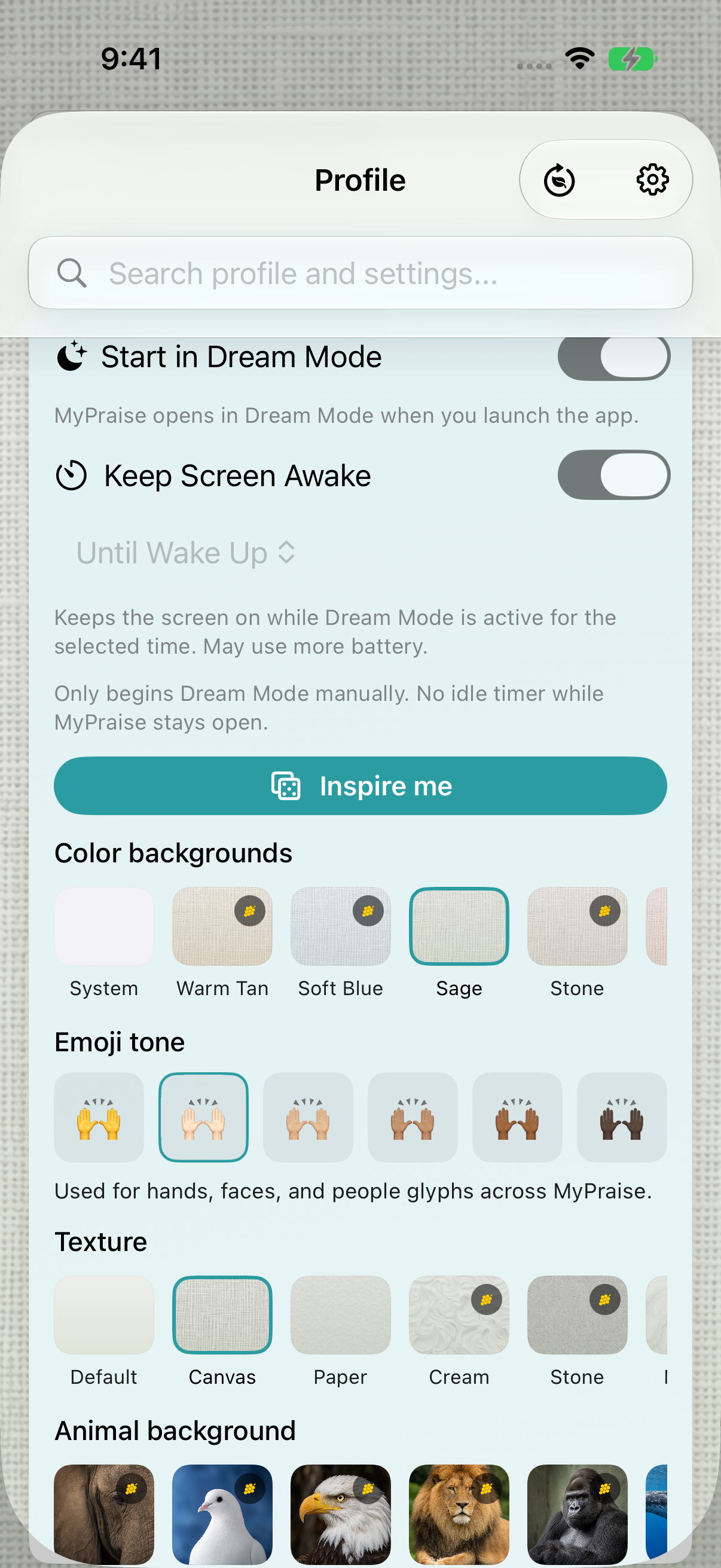
Sage and Canvas selected in the earlier 1.1.0 recording. Available free choices may change. 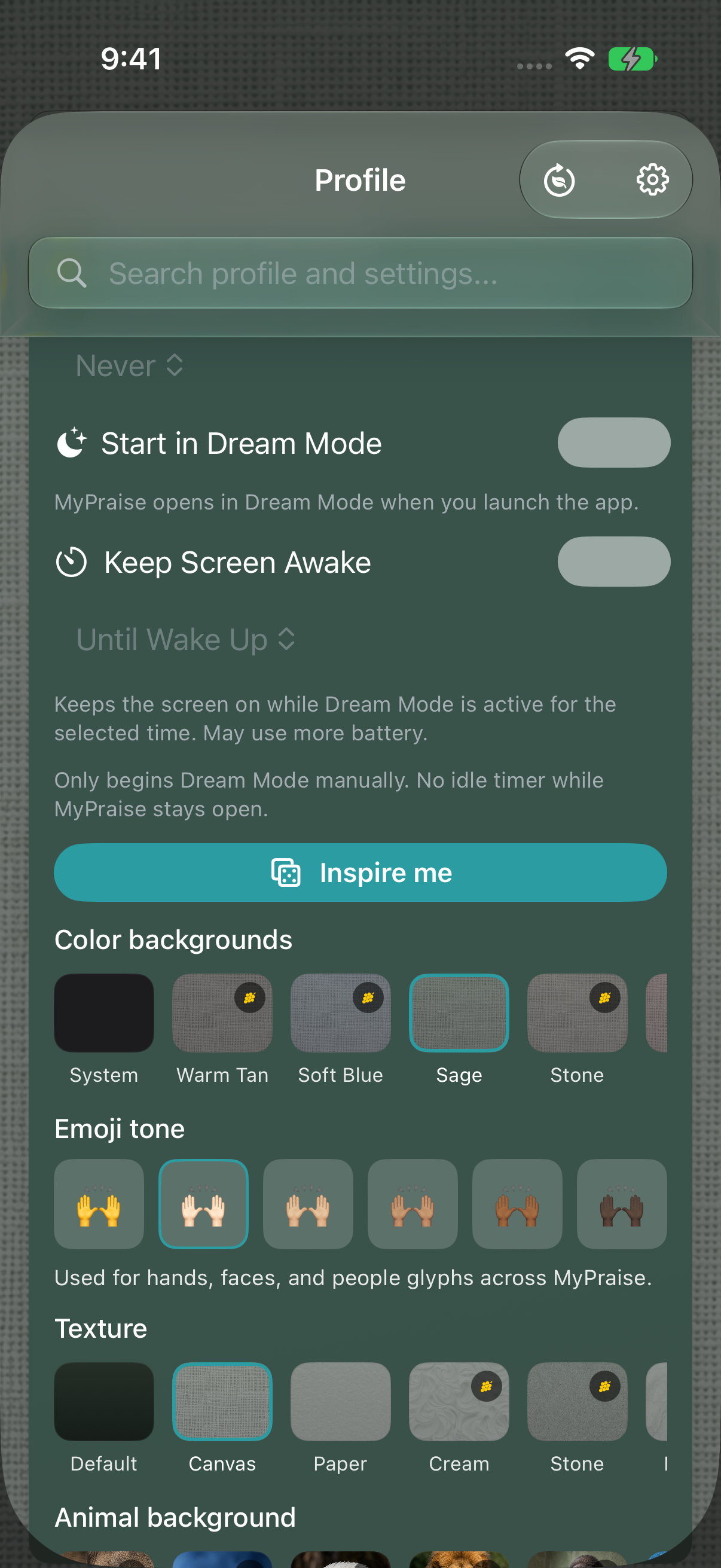
Dark comparison: the same saved Sage and Canvas choices. The main walkthrough uses light appearance.
Keep exploring
If something looks different
Checked against MyPraise App 1.1.0 · 2026-09-20
Before you begin
- For MyPraise App 1.1.0. Apple has approved this version; availability depends on the owner’s manual App Store release.
- Earlier MyPraise App 1.1.0 (34) recording. Screens may differ from the released app.
- Open your Profile. This example uses the Free plan with Sage and Canvas available on the capture date; featured free choices can change.
- Video and screenshots retain their original capture dates and build provenance; most existing walkthroughs were recorded with 1.1.0 (34). They are not new build 53 recordings.
The screen looks different.
Guide screens may come from different versions of MyPraise App. Always download the latest MyPraise App from the App Store.
If a control is still missing, open Settings → Support for help.
Why are some choices marked with a grape badge?
Some appearance choices are plan-dependent. Choose an available tile to follow this lesson. The free featured selection can rotate, so Sage or Canvas may not be offered in the same way on your device.