
Save a Scripture verse as a memory
3 minKeep a Bible verse in your memory library with its reference and text.
Watch the steps
Connecting playback controls…
Read the on-screen captions
- Press and hold a verse; choose Save as Memory
- Wait for the saved confirmation
- Return to your memories to find the verse
- Reopened sample: check the reference and verse text
Step by step
Choose a verse
Open the chapter and press and hold the verse you want to keep.
Save it to memories
Choose Save as Memory. Wait for the Saved to memories confirmation.
Find the saved verse
Return Home and search your memories for the reference, such as John 3:1. Open the matching memory. The clip skips this return navigation and joins a later result check.
Check the saved text
Confirm the reference, verse text and translation are present in the memory. This example is a new verse memory; attaching Scripture to an already existing memory is a separate workflow.
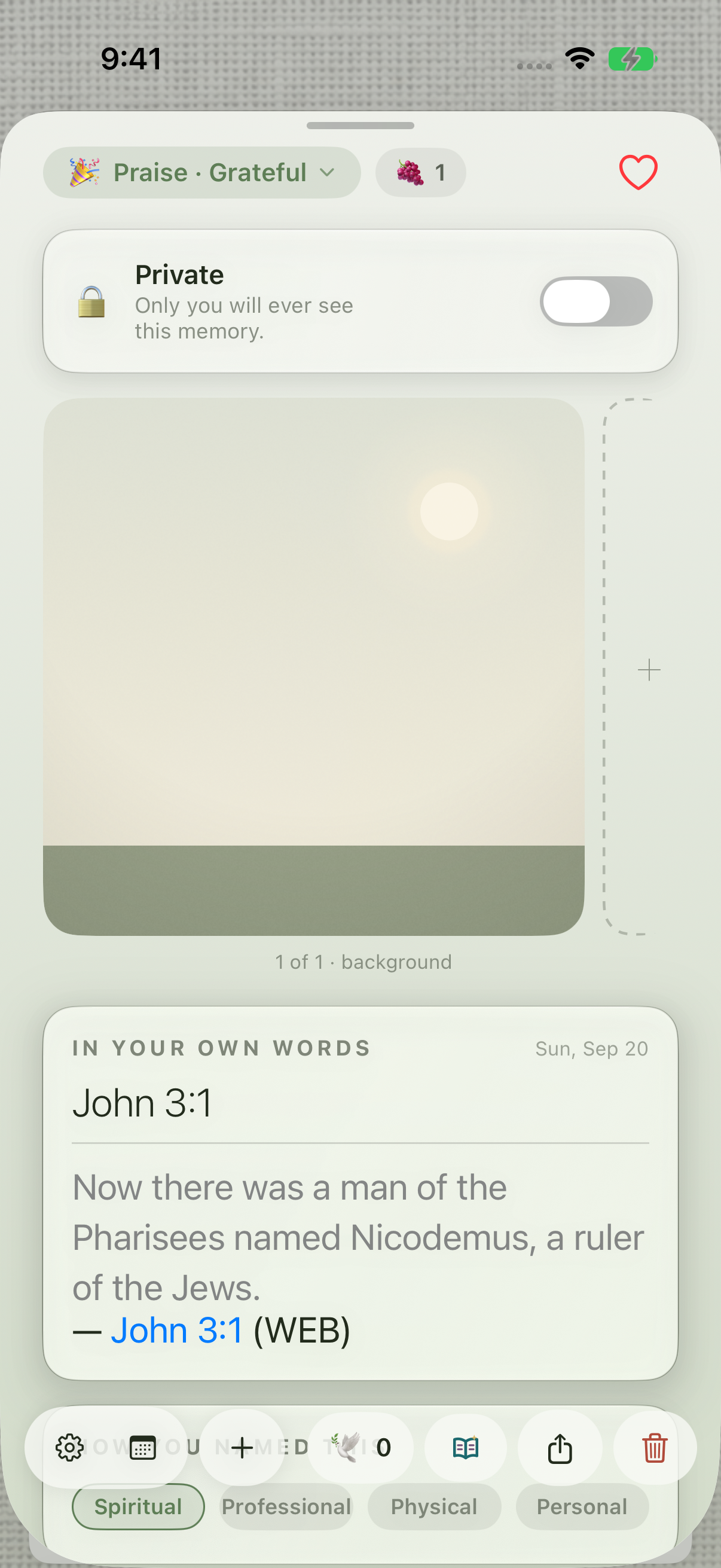
The saved memory retains the verse text and a linked Scripture reference.
Keep exploring
If something looks different
Checked against MyPraise App 1.1.0 · 2026-09-20
Before you begin
- For MyPraise App 1.1.0. Apple has approved this version; availability depends on the owner’s manual App Store release.
- Earlier MyPraise App 1.1.0 (34) recording. Screens may differ from the released app.
- Open a chapter in the Bible. The example uses John 3:1 from the World English Bible. The walkthrough joins the save action and a later check of the saved result.
- Video and screenshots retain their original capture dates and build provenance; most existing walkthroughs were recorded with 1.1.0 (34). They are not new build 53 recordings.
The screen looks different.
Guide screens may come from different versions of MyPraise App. Always download the latest MyPraise App from the App Store.
If a control is still missing, open Settings → Support for help.
Does this attach the verse to a memory I already wrote?
This demonstrated action creates a new verse memory. The existing-memory attachment workflow still needs separate verification.