
Use Scripture playback controls
3 minStart from a verse, follow its highlight, and use pause, resume, segment and stop controls.
Watch the steps
Connecting playback controls…
Read the on-screen captions
- Open a chapter in the Bible
- Press and hold a verse; choose Listen from here
- Follow the highlighted verse
- Pause when you need a moment
- Resume listening
- Move between segments
- Stop to return to the reader
Step by step
Open a chapter
Open the Bible and choose the chapter you want to hear.
Start from a verse
Press and hold a verse, then choose Listen from here. The active verse is highlighted.
Control playback
Use pause to take a moment and resume to continue. Use the previous and next segment controls to move through playback.
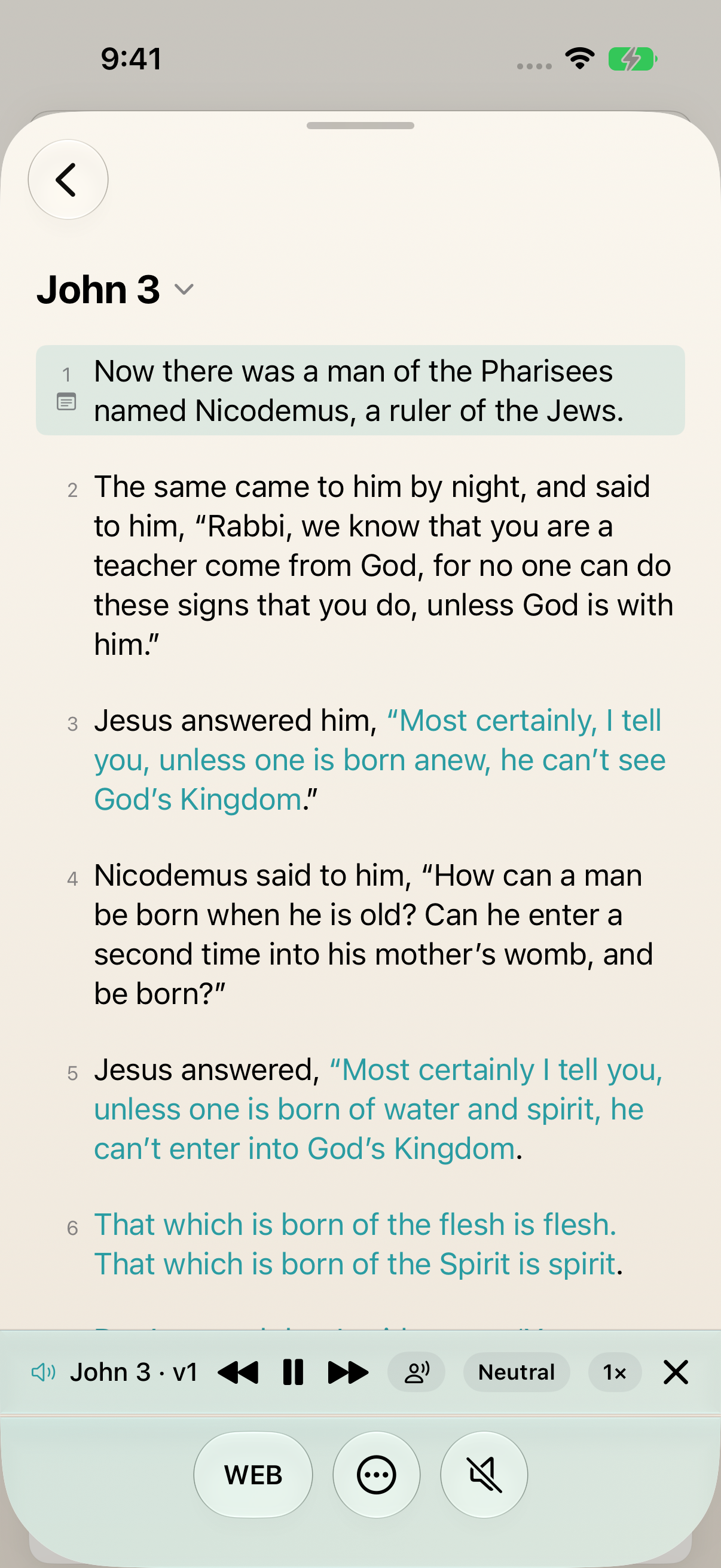
The active verse is highlighted above the pause, segment and stop controls. Stop and return
Tap the playback close control to stop and return to the reader. This capture verifies the visible controls; device audio, background playback and Lock Screen behavior remain to be checked.
Keep exploring
If something looks different
Checked against MyPraise App 1.1.0 · 2026-09-20
Before you begin
- For MyPraise App 1.1.0. Apple has approved this version; availability depends on the owner’s manual App Store release.
- Earlier MyPraise App 1.1.0 (34) recording. Screens may differ from the released app.
- Open the Bible with a chapter available. The example uses John 3. The guide recording is intentionally silent.
- Video and screenshots retain their original capture dates and build provenance; most existing walkthroughs were recorded with 1.1.0 (34). They are not new build 53 recordings.
The screen looks different.
Guide screens may come from different versions of MyPraise App. Always download the latest MyPraise App from the App Store.
If a control is still missing, open Settings → Support for help.
Why is there no sound in the walkthrough?
Guide recordings are intentionally silent and use written captions. This lesson verifies the visible controls; listening quality and background or Lock Screen behavior still need real-device verification.