
Add an affirmation to a memory
3 minKeep a personal encouragement alongside the memory it belongs to.
Watch the steps
Connecting playback controls…
Read the on-screen captions
- Open your memory and find Affirmations
- Tap Add and write your encouragement
- Check your words, then tap Save
- Your affirmation stays with the original memory
Step by step
Open the memory
Open a saved memory and scroll to Affirmations.
Add encouragement
Choose Add beside Affirmations. Check the displayed author and write your encouragement. This example uses the Ike N profile.
Save your words
Review the text and choose Save in the affirmation sheet.
Find it in the story
Your affirmation appears beneath Affirmations on the original memory. This is a locally entered reflection, not a message from another app user.
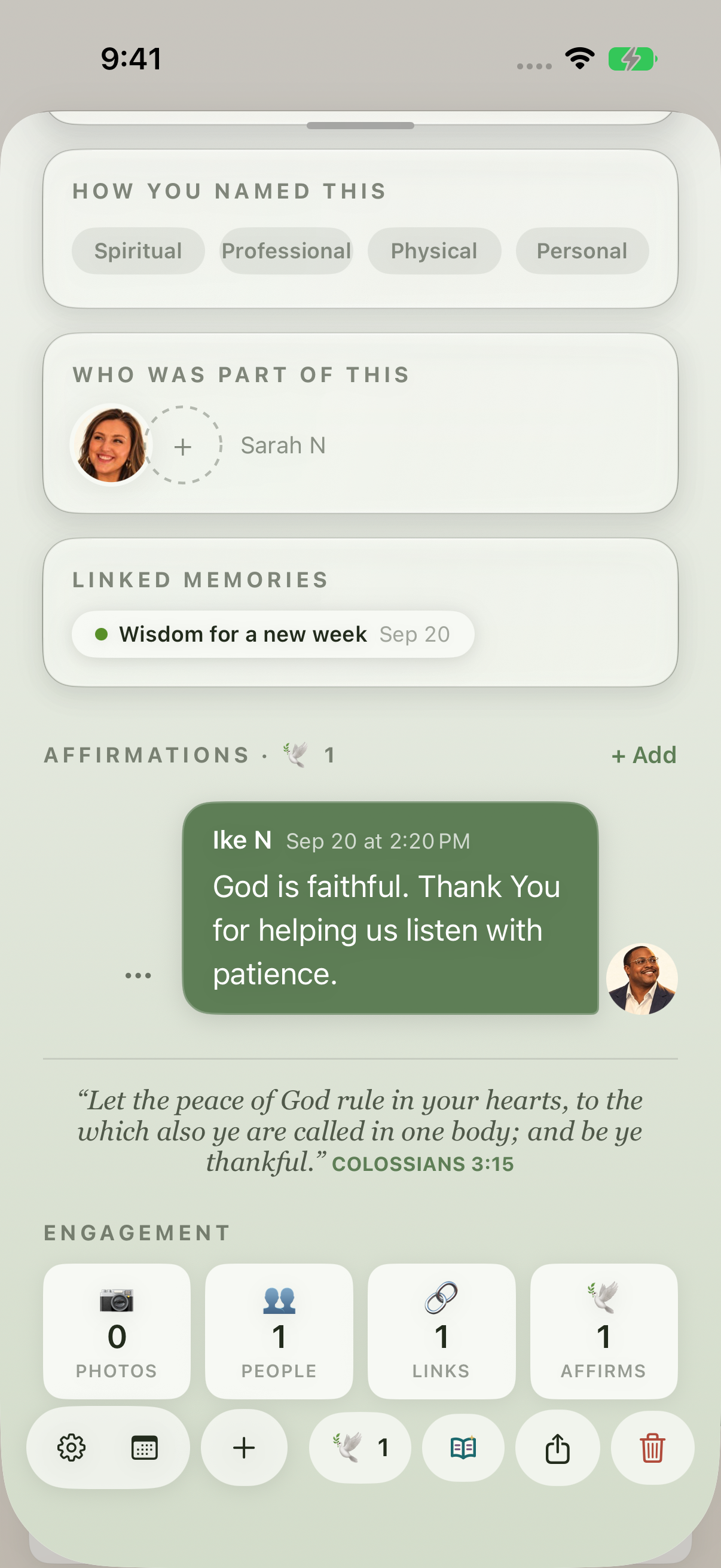
Your encouragement stays beside the original memory.
Keep exploring
If something looks different
Checked against MyPraise App 1.1.0 · 2026-09-20
Before you begin
- For MyPraise App 1.1.0. Apple has approved this version; availability depends on the owner’s manual App Store release.
- A saved memory and your app profile.
- Video and screenshots retain their original capture dates and build provenance; most existing walkthroughs were recorded with 1.1.0 (34). They are not new build 53 recordings.
The screen looks different.
Guide screens may come from different versions of MyPraise App. Always download the latest MyPraise App from the App Store.
If a control is still missing, open Settings → Support for help.