
Add a location and give it a label
3 minFind a place, label it, and show that label on a saved memory.
Watch the steps
Connecting playback controls…
Read the on-screen captions
- Open the memory, then Add to this memory → Set Location
- Expand the picker and search for a public place
- Use Search on the keyboard; check the returned place
- Add a label you will recognize
- Choose Name to display your label
- Save; the location label appears on the memory
Step by step
Open the location picker
Open your memory and choose the plus control, Add to this memory, then Set Location. Expand the picker using its top handle if you need more room.
Search and check the result
Enter a place in Search for a place. Use the Search key on the keyboard, then check the map and returned place details. This example searches Central Park New York and shows New York, NY, US.
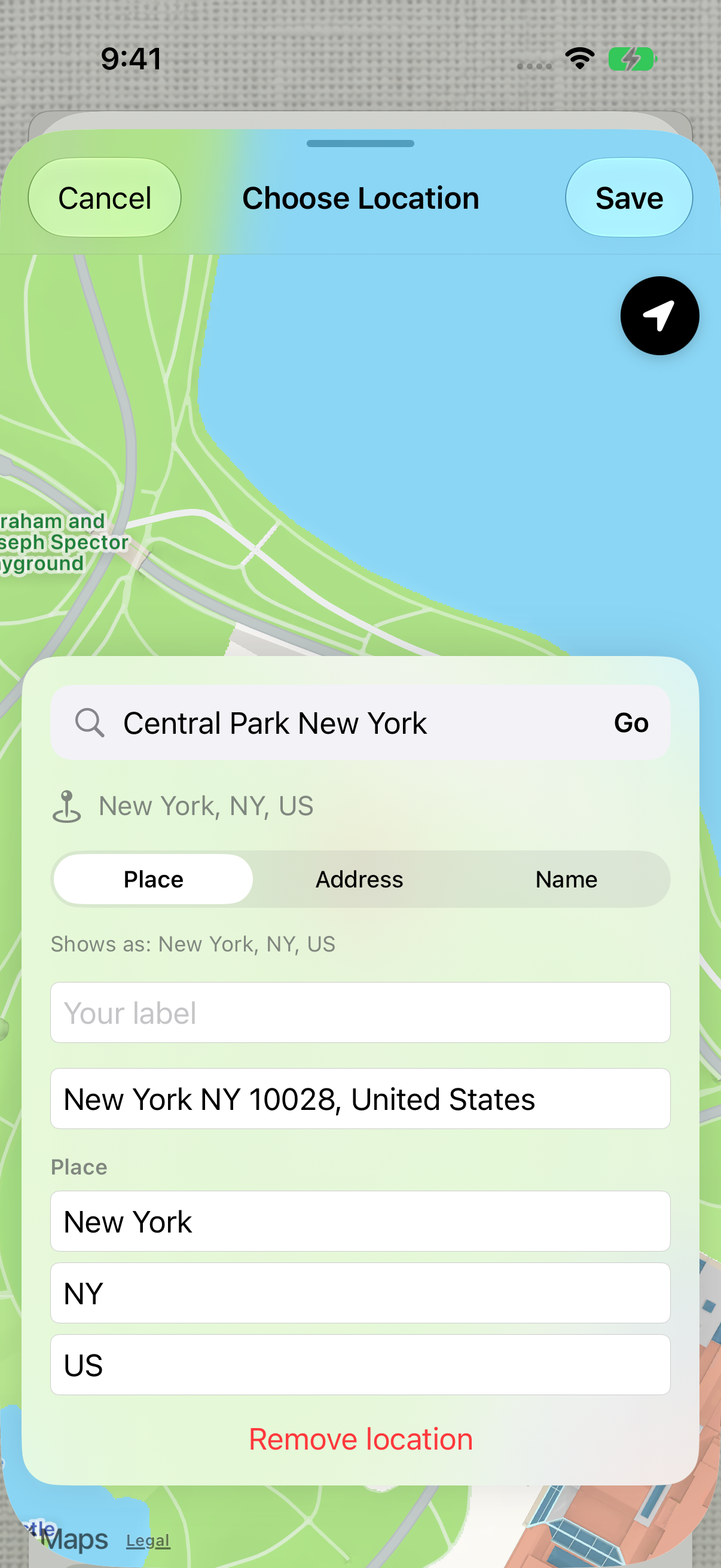
Search with the keyboard, then check the returned place before saving. Choose your label
Enter a recognizable name in Your label. Choose Name in the Place / Address / Name control to display your own label. This example uses Family walk (sample).
Save the location
Choose Save at the top. The memory shows your label beside the location pin. Reopen the memory to review it; confirm the place details before saving a change.
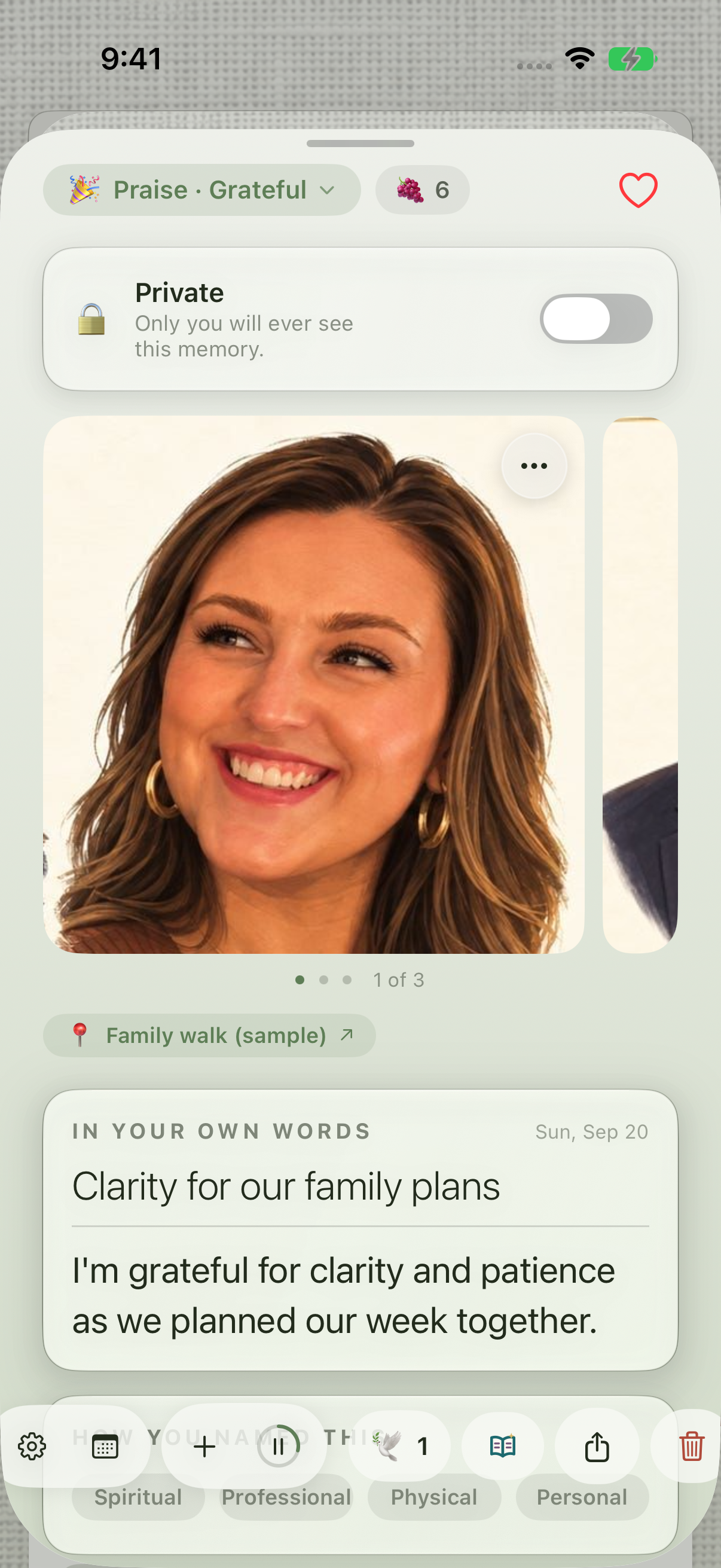
Choose Name and Save to show your custom label on the memory.
Keep exploring
If something looks different
Checked against MyPraise App 1.1.0 · 2026-09-20
Before you begin
- For MyPraise App 1.1.0. Apple has approved this version; availability depends on the owner’s manual App Store release.
- Earlier MyPraise App 1.1.0 (34) recording. Screens may differ from the released app.
- Open a saved memory. This example searches Central Park, New York using fictional sample data; it does not use current location.
- Video and screenshots retain their original capture dates and build provenance; most existing walkthroughs were recorded with 1.1.0 (34). They are not new build 53 recordings.
The screen looks different.
Guide screens may come from different versions of MyPraise App. Always download the latest MyPraise App from the App Store.
If a control is still missing, open Settings → Support for help.
The search field or Go button is crowded. What should I do?
Expand the picker using its top handle and submit with the Search key on the keyboard. In this preview, Go can overlap Save while the keyboard is visible. Check the returned map and place details before saving; do not assume the initial default location is yours.