
Browse and customize Dream Mode
3 minRevisit your content in Dream Mode, inspect its content choices and return to Home.
Watch the steps
Connecting playback controls…
Read the on-screen captions
- Open Dream Mode from Home.
- Use the arrows to browse your content.
- Open Customize.
- Review what floats on your canvas.
- Close Customize, then tap Home.
- You are back in your memory library.
Step by step
Open Dream Mode
From Home, tap the moon control to enter Dream Mode.
Browse your content
Use the previous and next arrows to move through the displayed content. The example moves from a saved link to an affirmation.
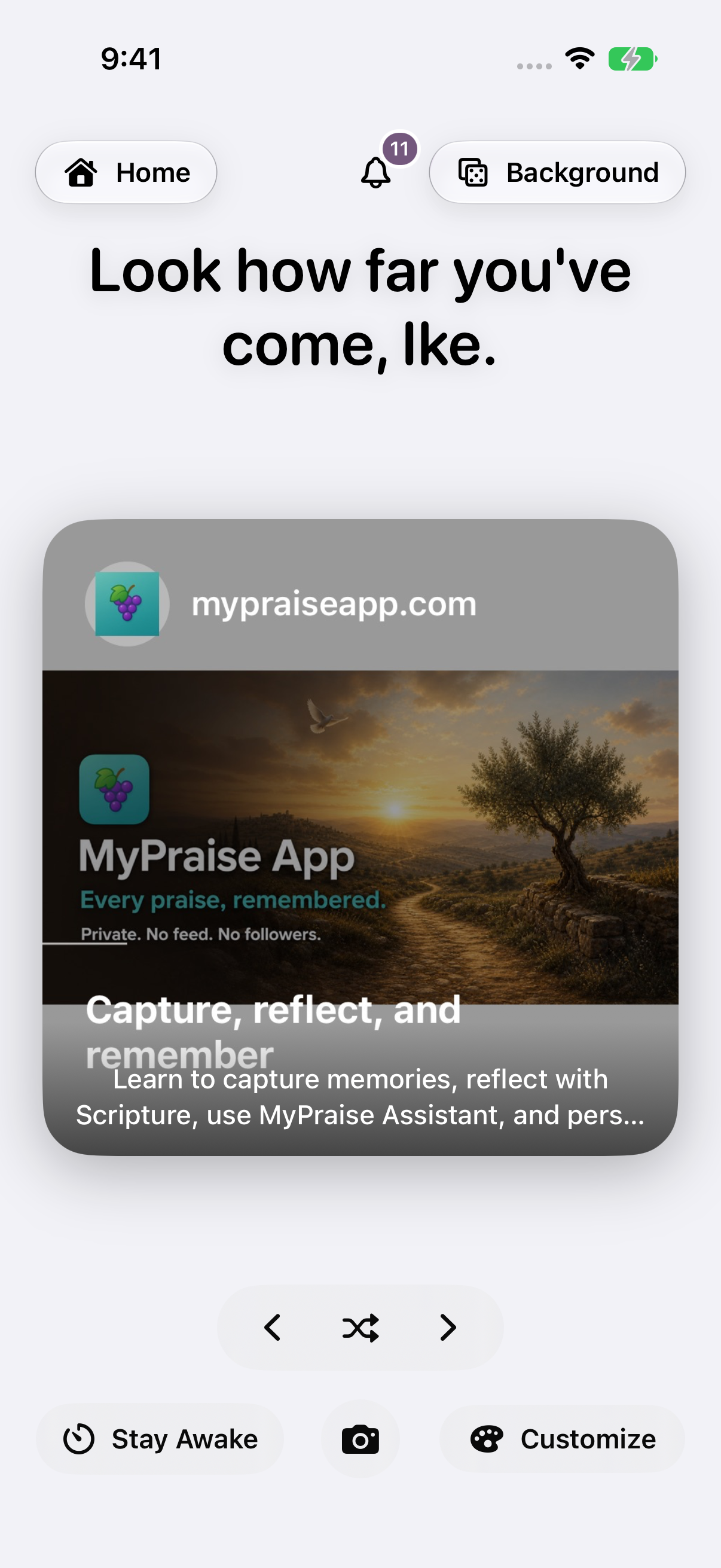
Light appearance with the System background. Dream Mode cycles through your selected content. 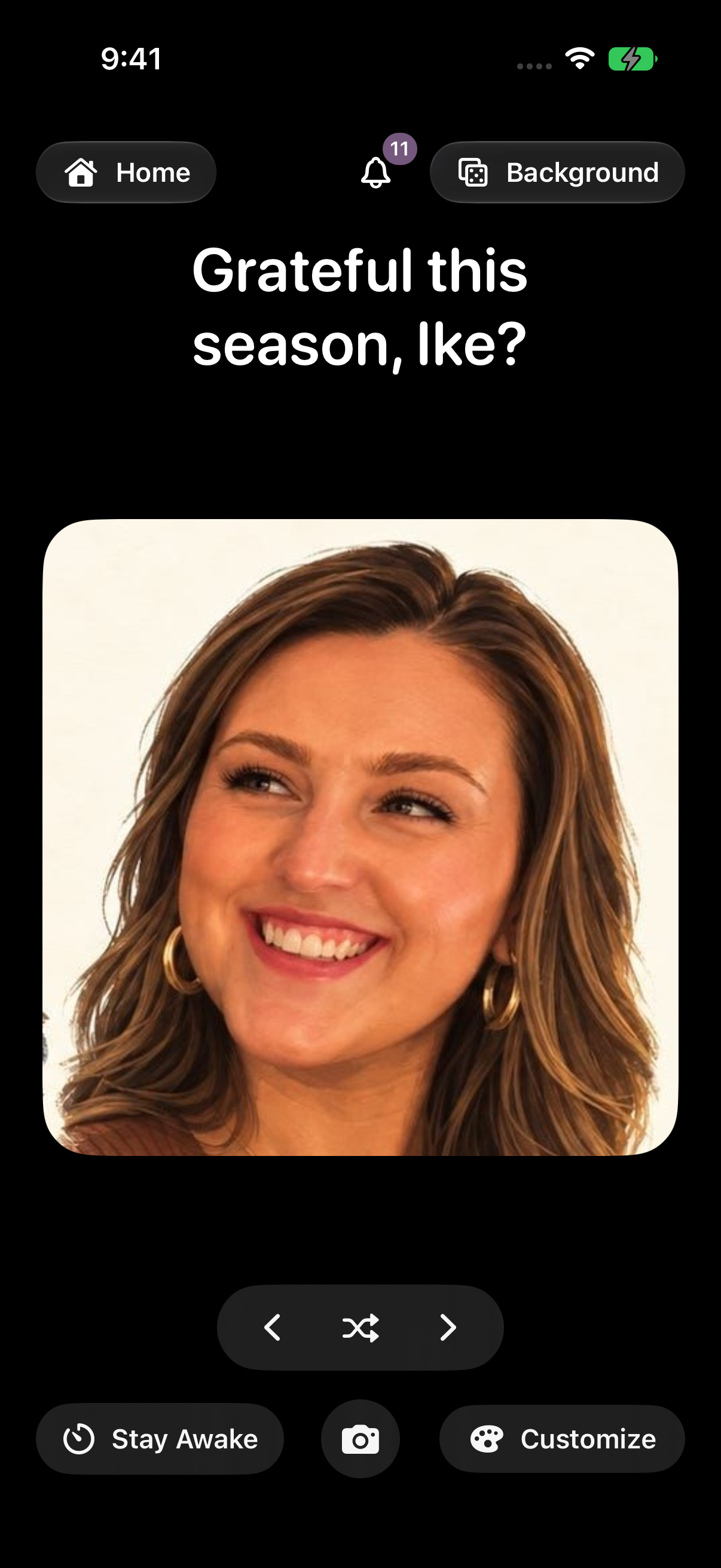
Dark appearance with the same controls. The displayed content varies as Dream Mode cycles. Review Customize
Open Customize and expand What floats on your canvas to review the available content categories. The walkthrough inspects these options; it does not test every toggle.
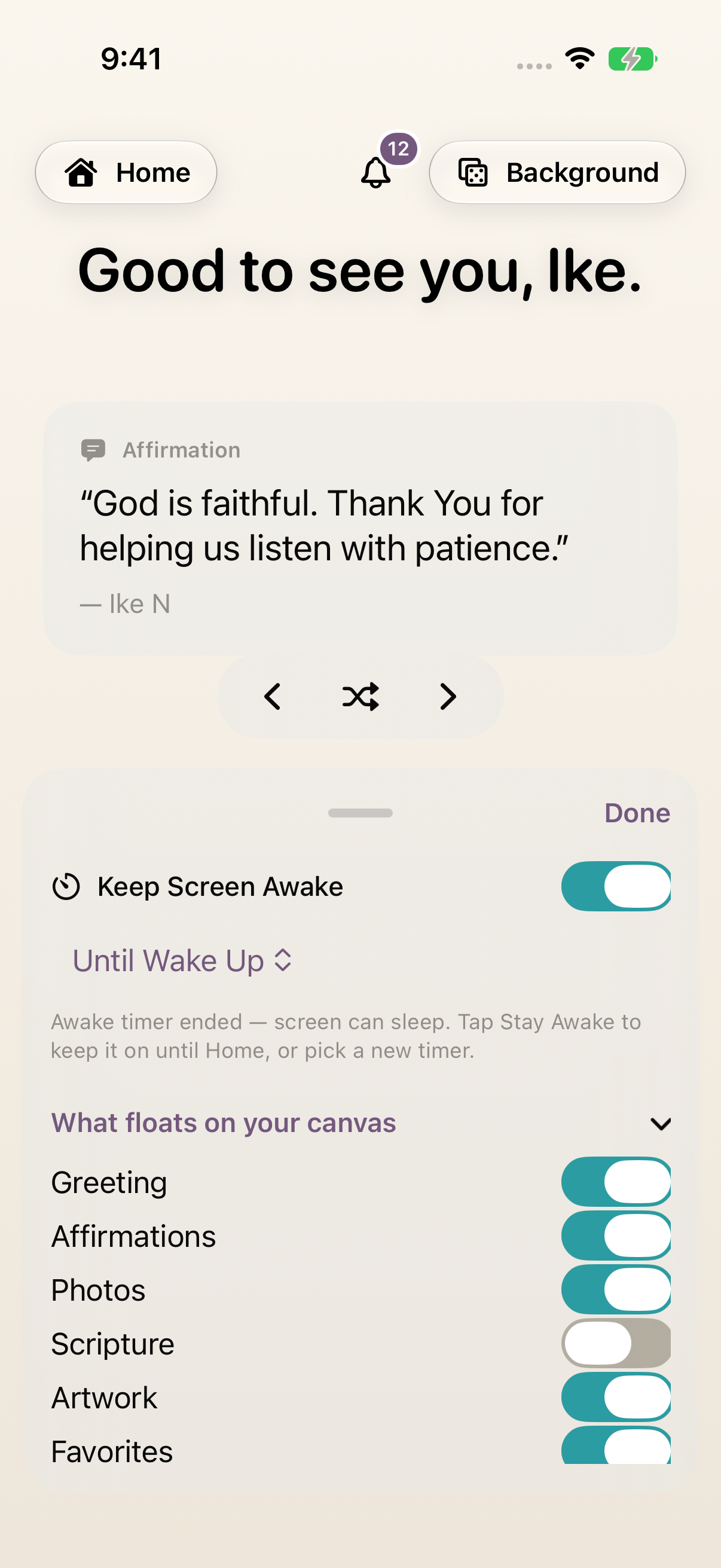
Review which content can appear. Keep Screen Awake behavior has not been verified in this preview. Return to your library
Tap Done to close Customize, then tap Home at the upper left. Check that your memory library is visible again.
Keep exploring
If something looks different
Checked against MyPraise App 1.1.0 · 2026-09-20
Before you begin
- For MyPraise App 1.1.0. Apple has approved this version; availability depends on the owner’s manual App Store release.
- Earlier MyPraise App 1.1.0 (34) recording. Screens may differ from the released app.
- Begin on Home with saved sample content. This walkthrough uses light/day appearance.
- Video and screenshots retain their original capture dates and build provenance; most existing walkthroughs were recorded with 1.1.0 (34). They are not new build 53 recordings.
The screen looks different.
Guide screens may come from different versions of MyPraise App. Always download the latest MyPraise App from the App Store.
If a control is still missing, open Settings → Support for help.
Will Keep Screen Awake stop my device from sleeping?
That behavior is not verified in this preview. The captured switch and stored preference did not agree. This lesson covers browsing, inspecting Customize and returning Home.